teleprompter video recording app
Record with a clear next line
Use a script or natural recording path, keep your place and recover valid work after an interruption.
- Plan
- Create
- Review
- Move forward
Inside the app
See it in ClientWorkSystem.
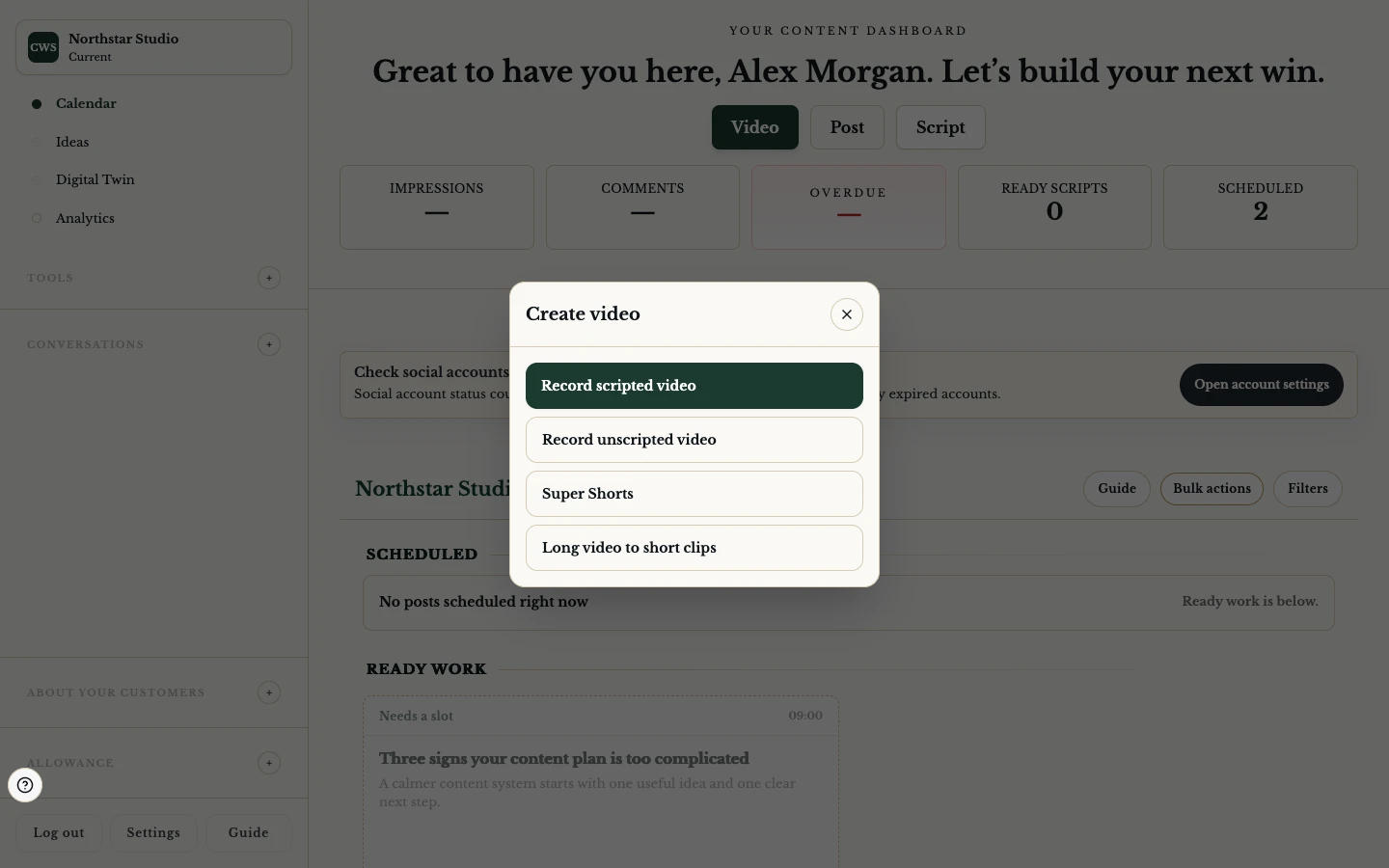
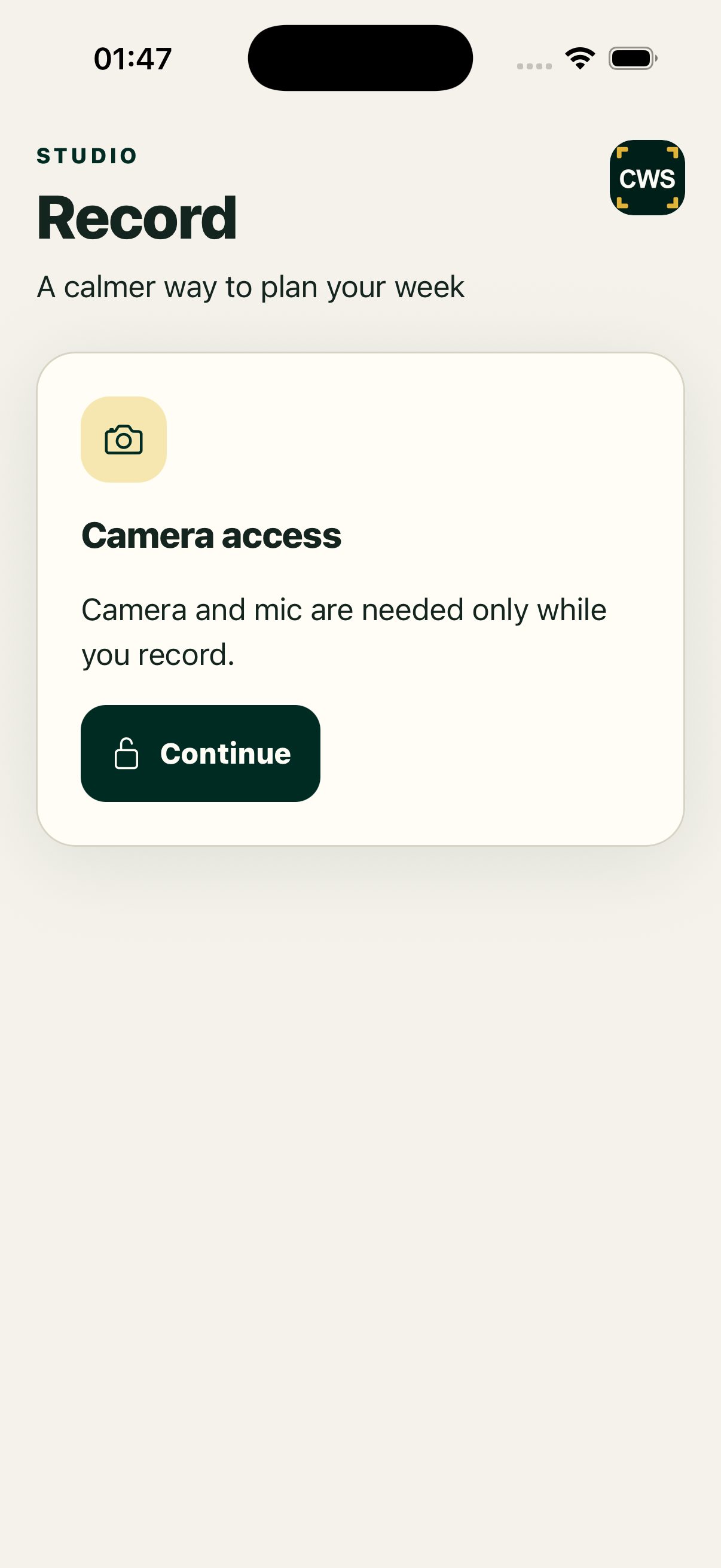
ClientWorkSystem's recording workflow supports scripted and more natural takes. Use the teleprompter when you want a visible script, adjust the reading pace, record in segments where supported, and keep recovery close when a take or upload is interrupted.
Recording is not complete until the preview, upload and handoff state says so. A local take, a processing preview and a delivered edit request are different things.
How it works
- Open the recording link or topic. Keep the selected idea, hook and script attached to the recording context where provided.
- Choose the recording mode. Use a teleprompter or a more natural capture path offered by the current workflow.
- Prepare the view. Set the readable text size, pace, orientation and camera guidance. Test the microphone and camera permissions.
- Record, pause or retake. Follow the visible segment or script. Preview a take and retake the part that needs work when the flow supports it.
- Finish the handoff. Let upload and processing reach a visible state. Retry a failed transfer rather than assuming a partial file is ready.
A recorder built around recovery
Teleprompter and Voice Follow
The teleprompter can scroll at a chosen pace, with a practice state and voice-follow behaviour where enabled. If the pace is wrong, slow it down; changing the display pace does not rewrite the script.
Segments and retakes
Scripted work can be split into ordered segments. Preview completed parts, retake a section and keep the remaining context where the mode supports it. The full script and hook should remain available to the editing handoff.
Upload states matter
Uploads can use chunks, retries and background progress. A failed chunk is a recovery problem, not proof that the video is lost or published. Use the visible retry or resume control and check the final state.
Camera and microphone limits
The browser or native app still needs device permission, a supported format and enough local or network capacity. The product can guide the next step, but it cannot make an unavailable camera or disconnected network reliable.
Platform and availability
Recording is available in the browser and through supported Mac, iPhone, iPad and Android apps, with camera, audio and permission controls suited to each device. Windows is coming soon.
Questions
Can I record without a script?
The workflow includes a more natural capture path where enabled. The available mode is shown when you start.
Does closing the page lose my take?
Recovery checkpoints and upload queues are designed to preserve in-progress work, but a checkpoint is not the same as a finished upload. Reopen the recording link and follow its state.
Can I change the script while recording?
Some text is editable before recording and between supported states. During an active take, controls are limited to protect the recording context.
Is Voice Follow always available?
No. It depends on the current recording mode, browser or device support and capability state. Manual pace controls remain the fallback where shown.
Does a preview mean an editor has received it?
No. Preview, upload and editing handoff have separate statuses.