AI content coach
A private content coach for the next move
Ask a grounded question in your workspace, review the answer, and choose whether it should become content.
- Plan
- Create
- Review
- Move forward
Inside the app
See it in ClientWorkSystem.
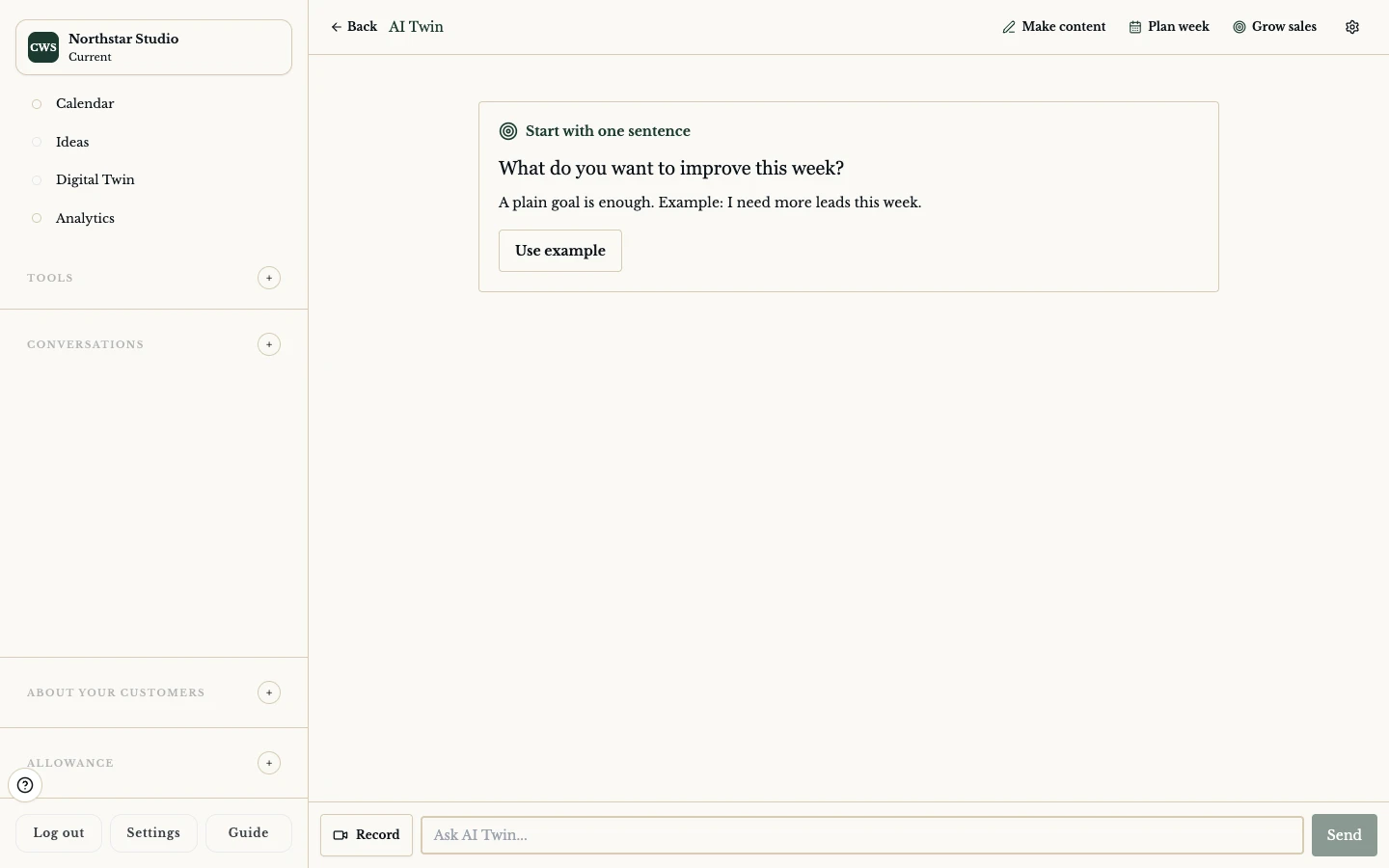
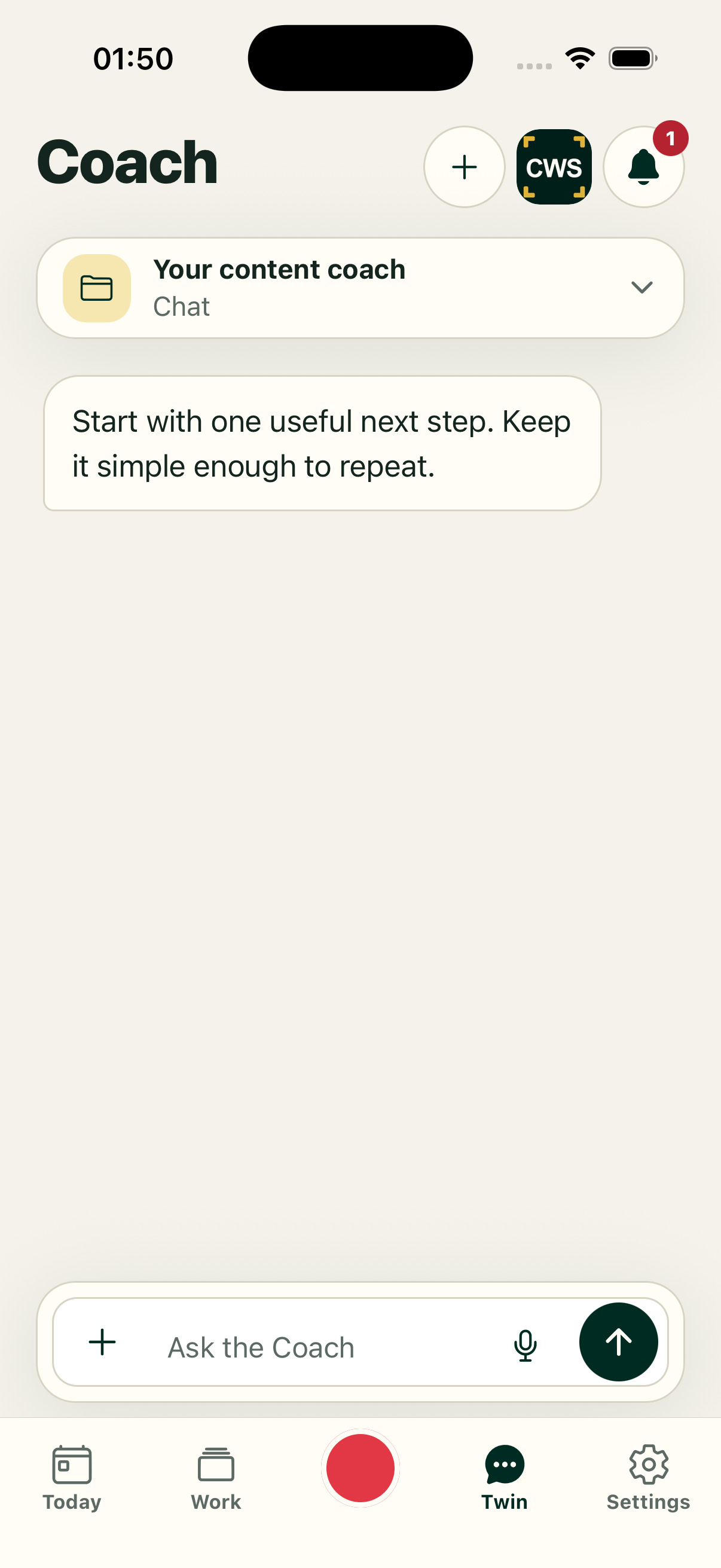
Digital Twin is the workspace conversation for turning context into a practical next action. Ask about an idea, an audience, a script, a graphic, or a recording. The chat can help you shape a prompt and hand you into the right tool. It is not a public chatbot, a human adviser, or a guarantee that generated copy is correct.
Your workspace context stays subject to the account, consent, and data controls that apply to the product. Review what the conversation uses before it becomes a caption or script. Remove private customer detail from anything you plan to publish.
How it works
- Open Digital Twin from the client calendar or the supported setup entry.
- Ask one focused question, or choose a visible starter action such as an idea, script, or next-step prompt.
- Read the response and correct names, facts, tone, and assumptions.
- Choose a supported handoff: create a topic, open the script path, start a recording, or seed QuickPost graphic creation.
- Review the resulting draft in its own surface before saving or scheduling it.
What it can help with
Unstick an idea. Ask for a few angles on a real customer question or business point.
Shape a script. Turn a reviewed idea into an opening, sections, and a teleprompter-ready starting draft where that workflow is enabled.
Prepare a recording. Move from a script decision into the supported Record flow; the chat does not record for you.
Start a QuickPost. A graphic intent can open a prefilled QuickPost path. The image remains provider-dependent and needs review.
Keep context visible. Saved persona interviews and readable conversations can provide continuity, but they are not a substitute for checking current facts.
Supported workflow and limits
Digital Twin chat and its handoffs to topics or QuickPost are available in the web client. A native app may open the same secure web flow. Responses depend on the context you provide and the available AI service; they can be incomplete or wrong. Check important advice, facts and claims before using them.
FAQs
Is Digital Twin a real person?
No. It is an AI-assisted workspace conversation. Treat its output as a draft.
Does it know everything about my business?
No. It only has the context available to the current workflow and account settings.
Can it write a script?
It can help start a script workflow where enabled. Review the result before recording.
Does it publish what I ask for?
No. Handoffs open draft tools; normal review and delivery truth still apply.
Is my customer data public?
Keep private customer details inside the approved workspace and follow your consent and data controls before sharing any result.