Skip to content
ClientWorkSystem

ClientWorkSystem feature guide

A calmer path from idea to published content

Follow one connected path from a useful idea to reviewed content, recording, scheduling and learning.

  1. Plan
  2. Create
  3. Review
  4. Move forward

ClientWorkSystem brings the working parts of content creation into one connected place. Start with an idea, shape it into a script or post, record when you are ready, keep the useful files, and schedule the next step.

This is a product guide, not a promise that every tool is enabled for every account. Sign in to see the tools and connections available to you.

Sign in to ClientWorkSystem

How it works

The feature set is organised around a simple journey:

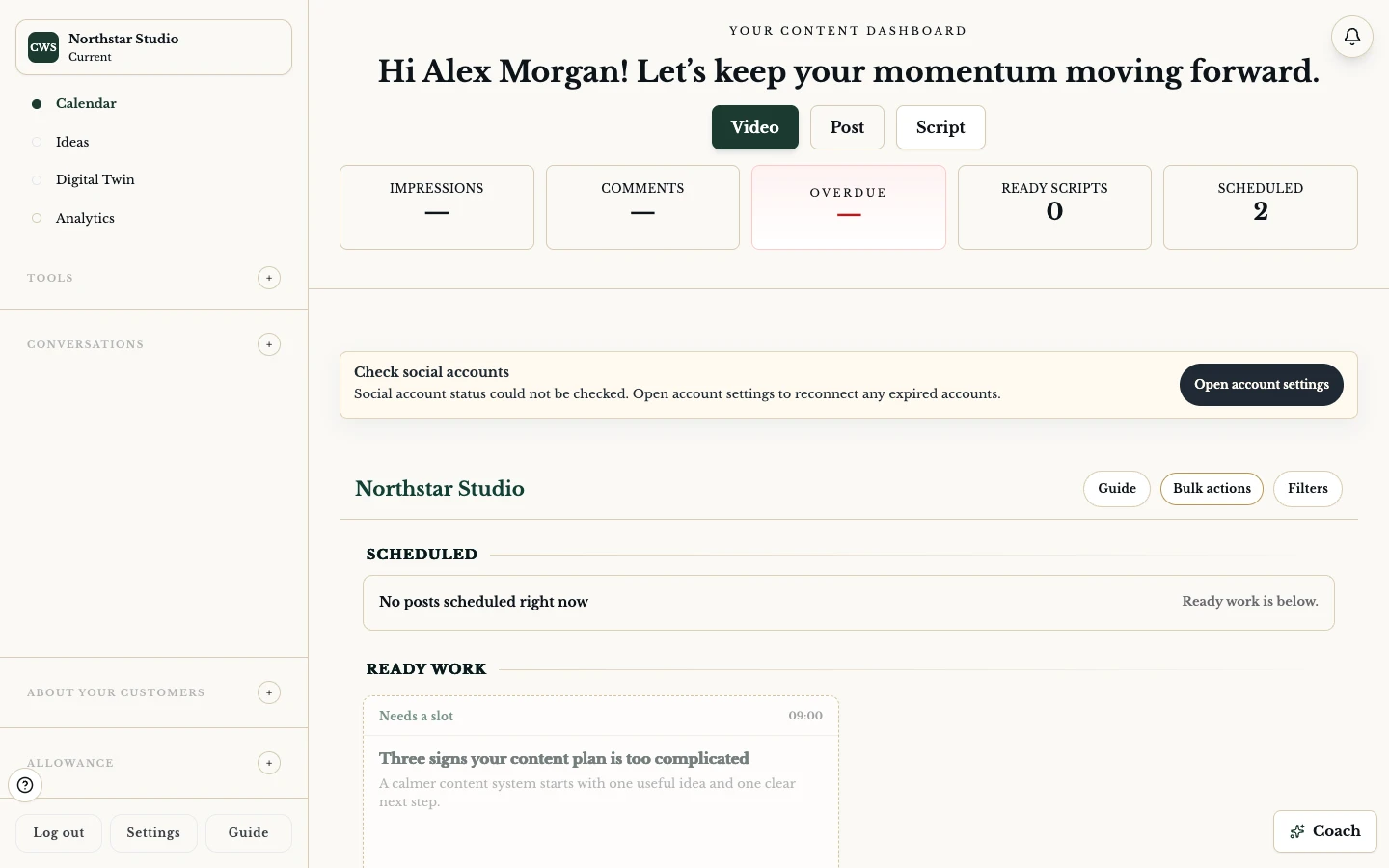
  1. Plan the next useful thing. Use the Content Calendar and Today view to see ideas, drafts and scheduled work.
  2. Make a first version. Write a post, choose an asset, or turn a topic into a script.
  3. Record or refine. Use the recorder, teleprompter and recovery controls when video is the right format.
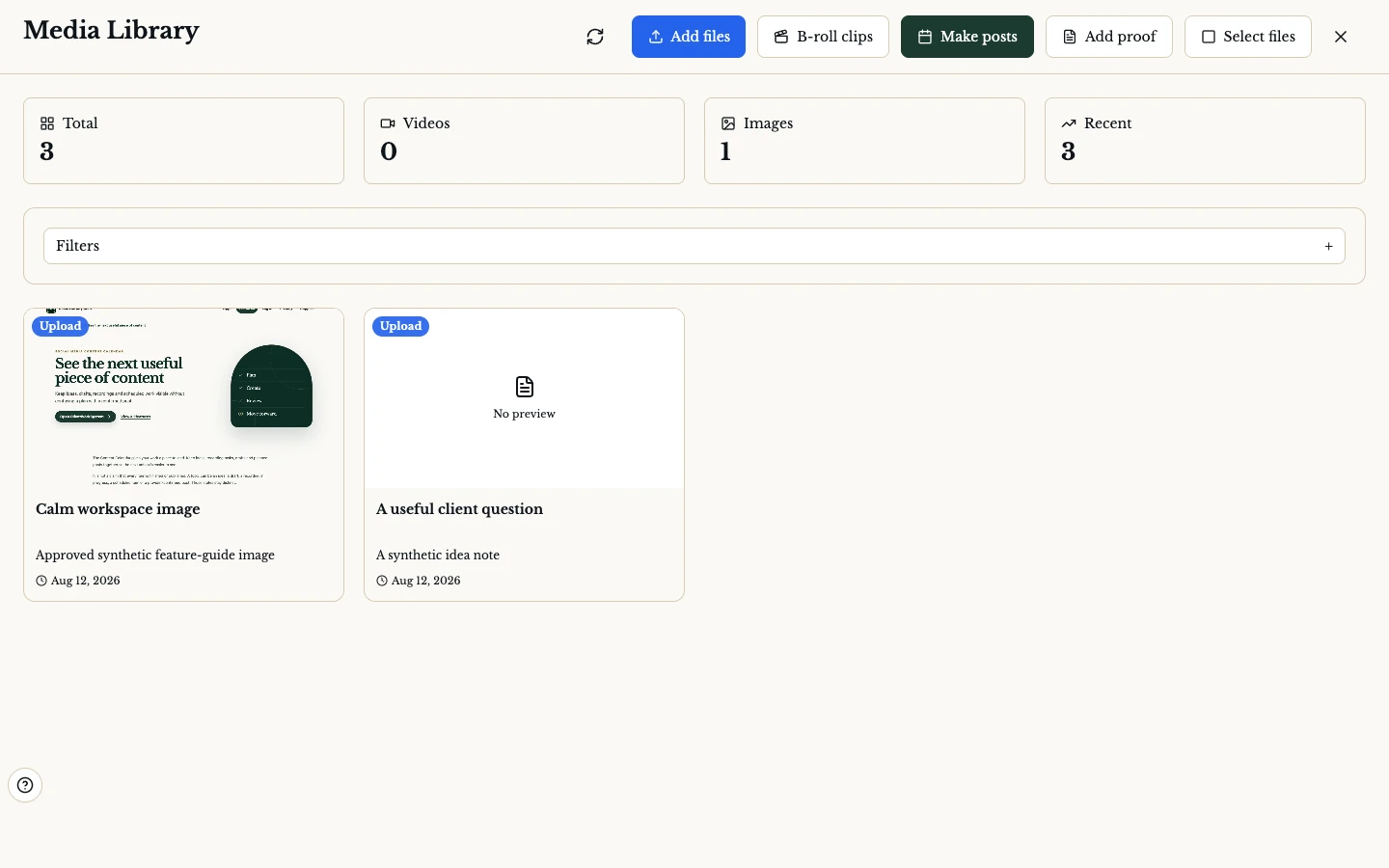
  4. Keep the source material. Save photos, videos and other approved files in the Media Library.
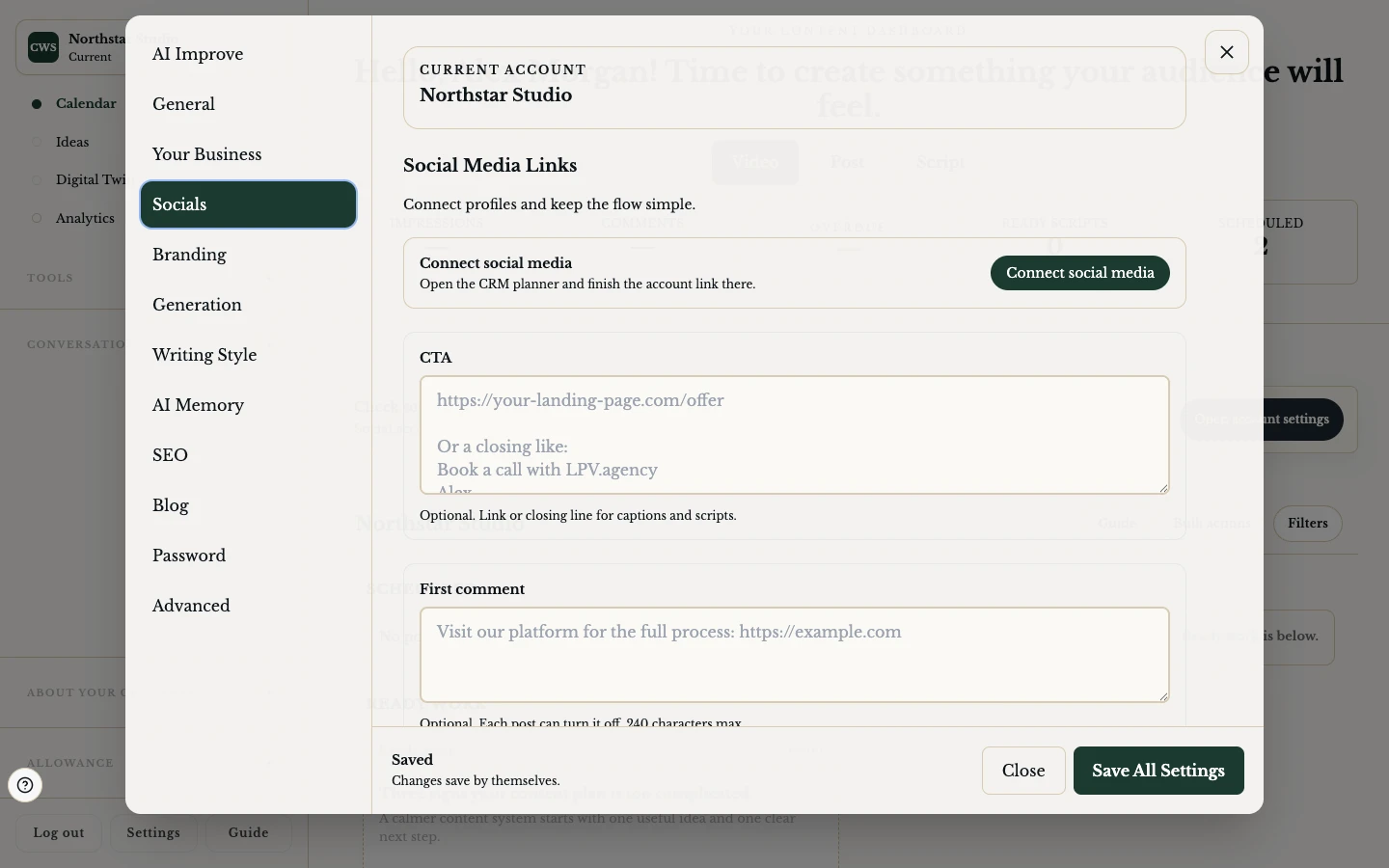
  5. Schedule with care. Choose a connected destination and check the returned status before treating a post as delivered.

Platform notes

ClientWorkSystem is available on the web, Mac, iPhone, iPad and Android. The Mac app hosts the desktop client, while mobile controls can differ from the browser. Windows is coming soon. Some tools depend on your account, connections or app version, so sign in to see what is available to you.

Questions

Is every feature available on every plan or account?

No. Availability can depend on account settings, connected services and app version. Sign in to see the tools available to you.

Can I start on my phone and continue in the browser?

Some flows use shared account state or a secure web handoff. The exact return path depends on the flow and must be available in your signed-in account.

Does a scheduled post always mean it was published?

No. A scheduled, queued, sent or provider-confirmed state is different from a local draft. Check the destination response shown by the product.
Related pages

Explore the system

One useful step connects to the next.

01

Make a social graphic that starts with your message

Turn a topic or post idea into a visual direction, then review the generated candidate before you use it.

Read feature
02

Move from a topic to words you can say

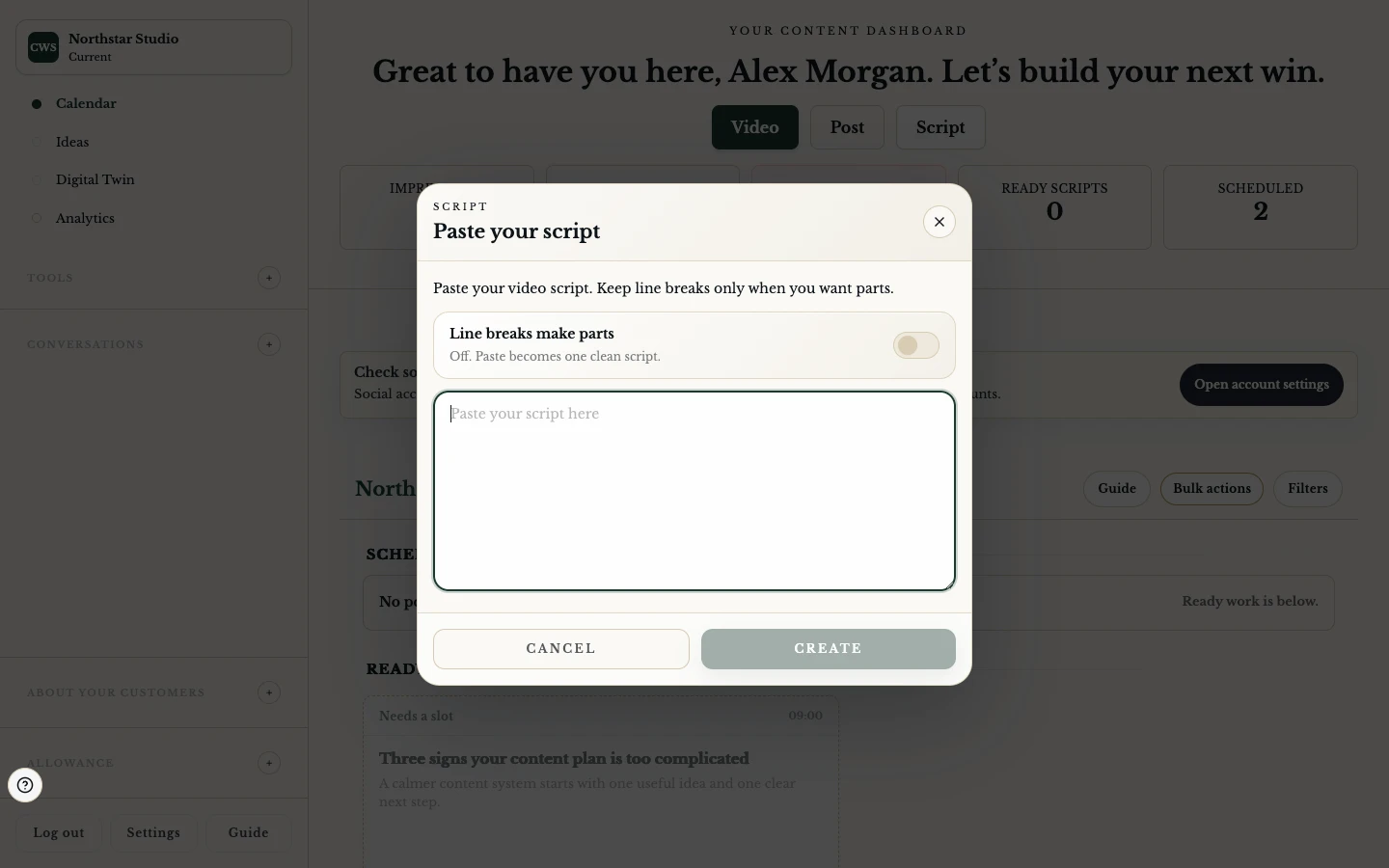
Shape a topic into an editable script and carry the reviewed words into recording when you are ready.

Read feature
03

Learn what your content is showing

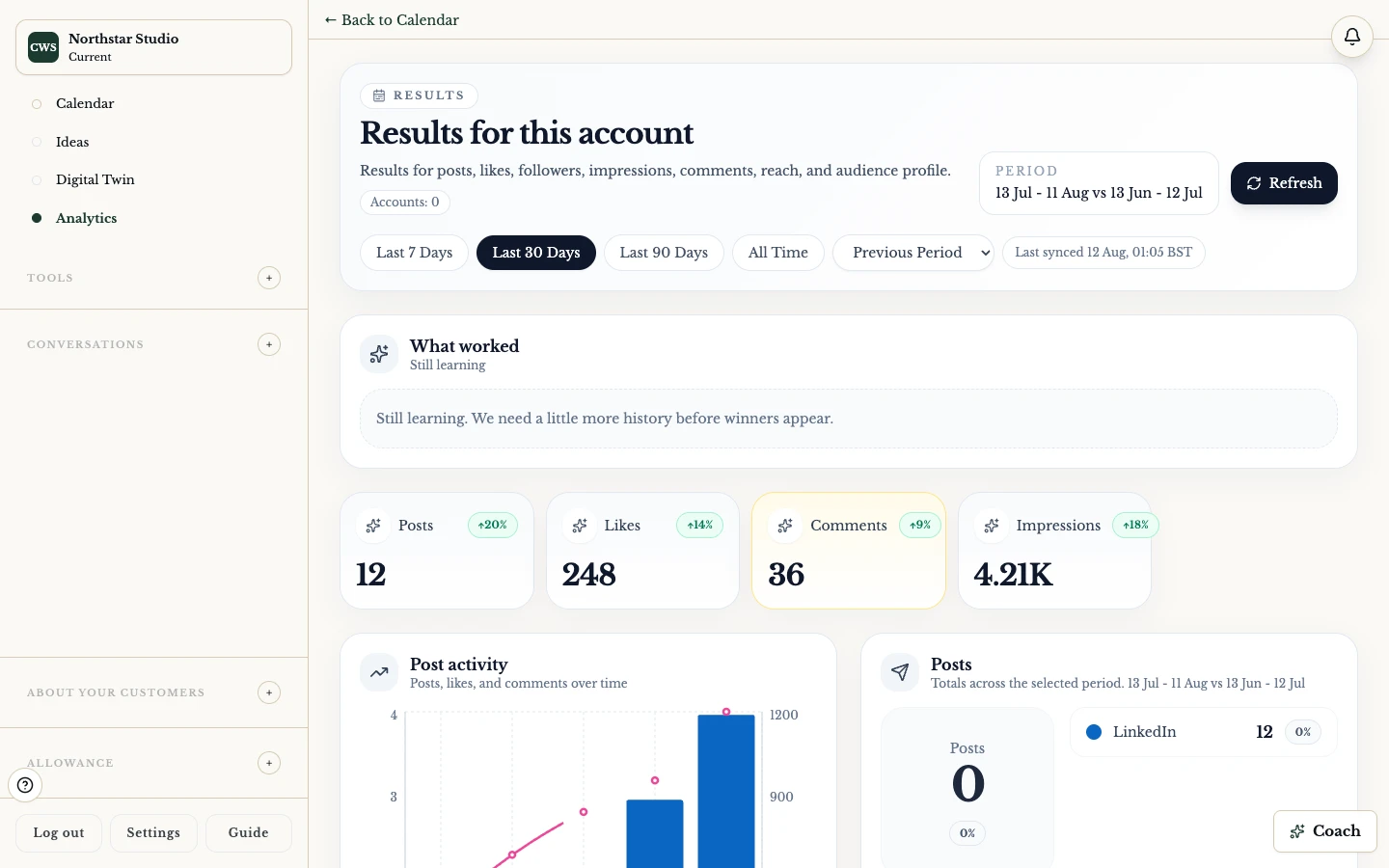
Read the latest available provider data, compare useful signals, and choose a better next topic without pretending a missing metric is zero.

Read feature
04

See the next useful piece of content

Keep ideas, drafts, recordings and scheduled work visible without confusing a plan with a confirmed post.

Read feature
05

Keep good ideas moving

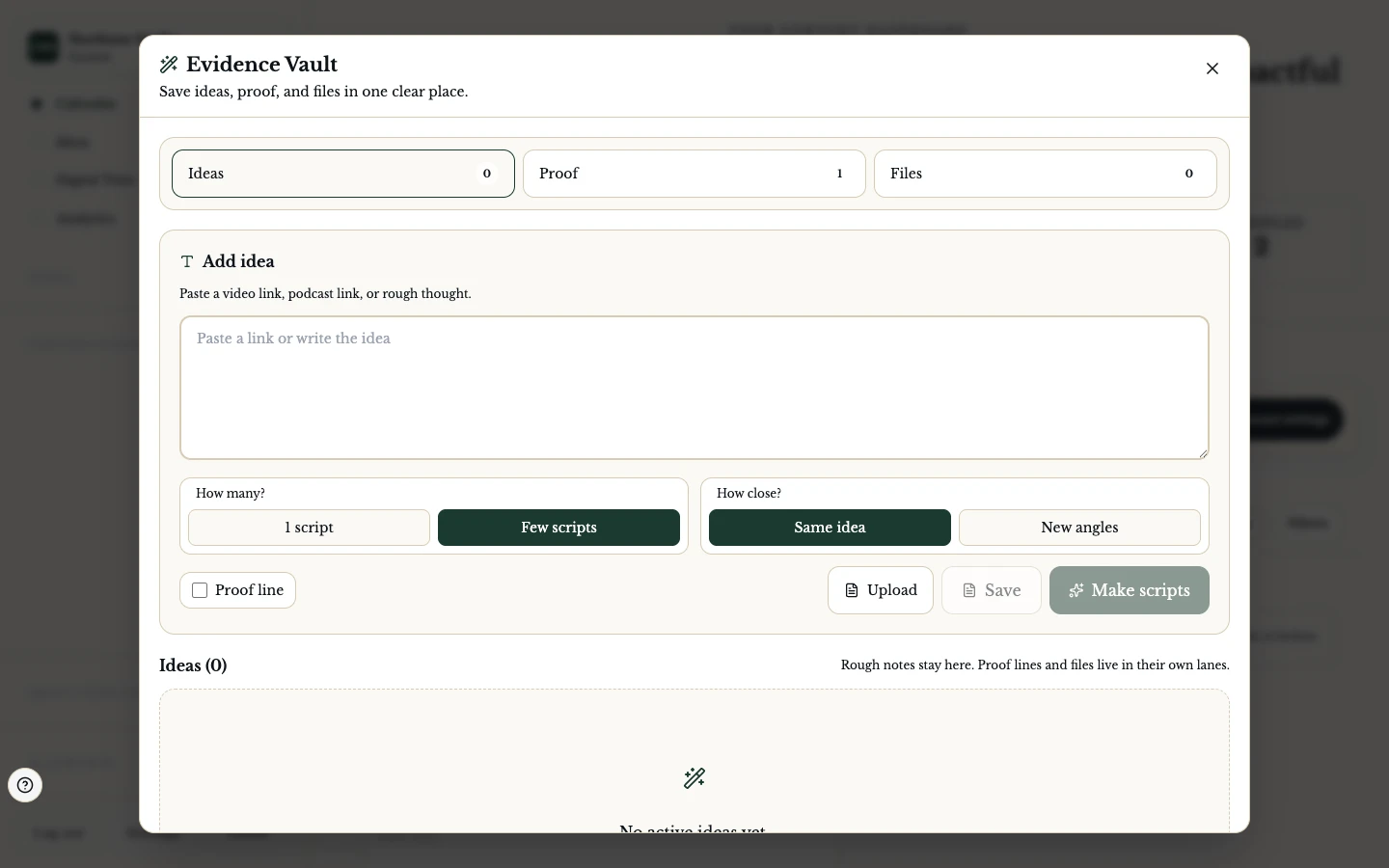
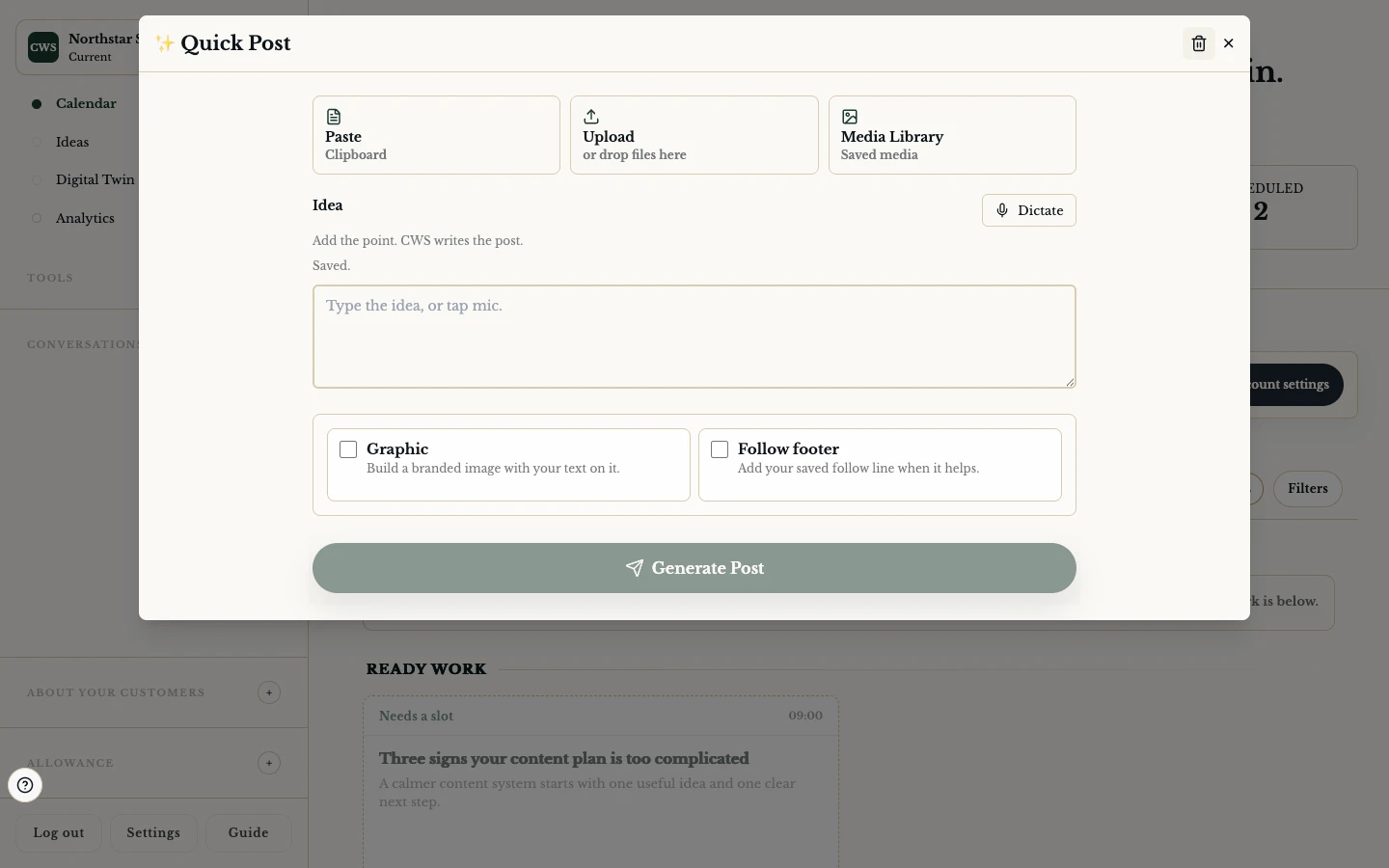
Capture a useful thought, add context, and choose the next concrete action without starting from a blank page.

Read feature
06

A private content coach for the next move

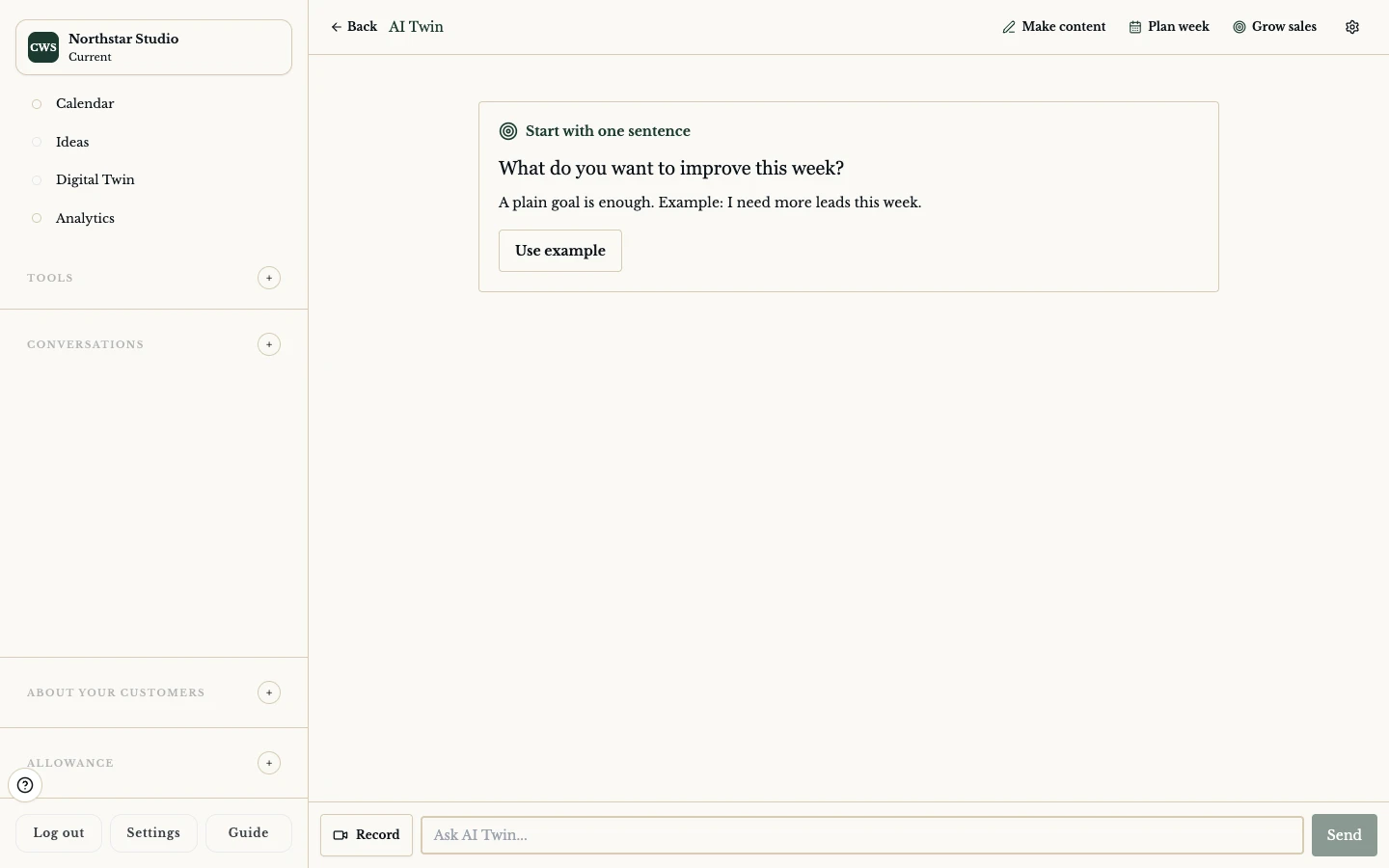
Ask a grounded question in your workspace, review the answer, and choose whether it should become content.

Read feature
07

Keep the files that make the next post easier

Upload, find and reuse approved media while keeping attachments, batch work and deletion states clear.

Read feature
08

Give a real photo a careful finish

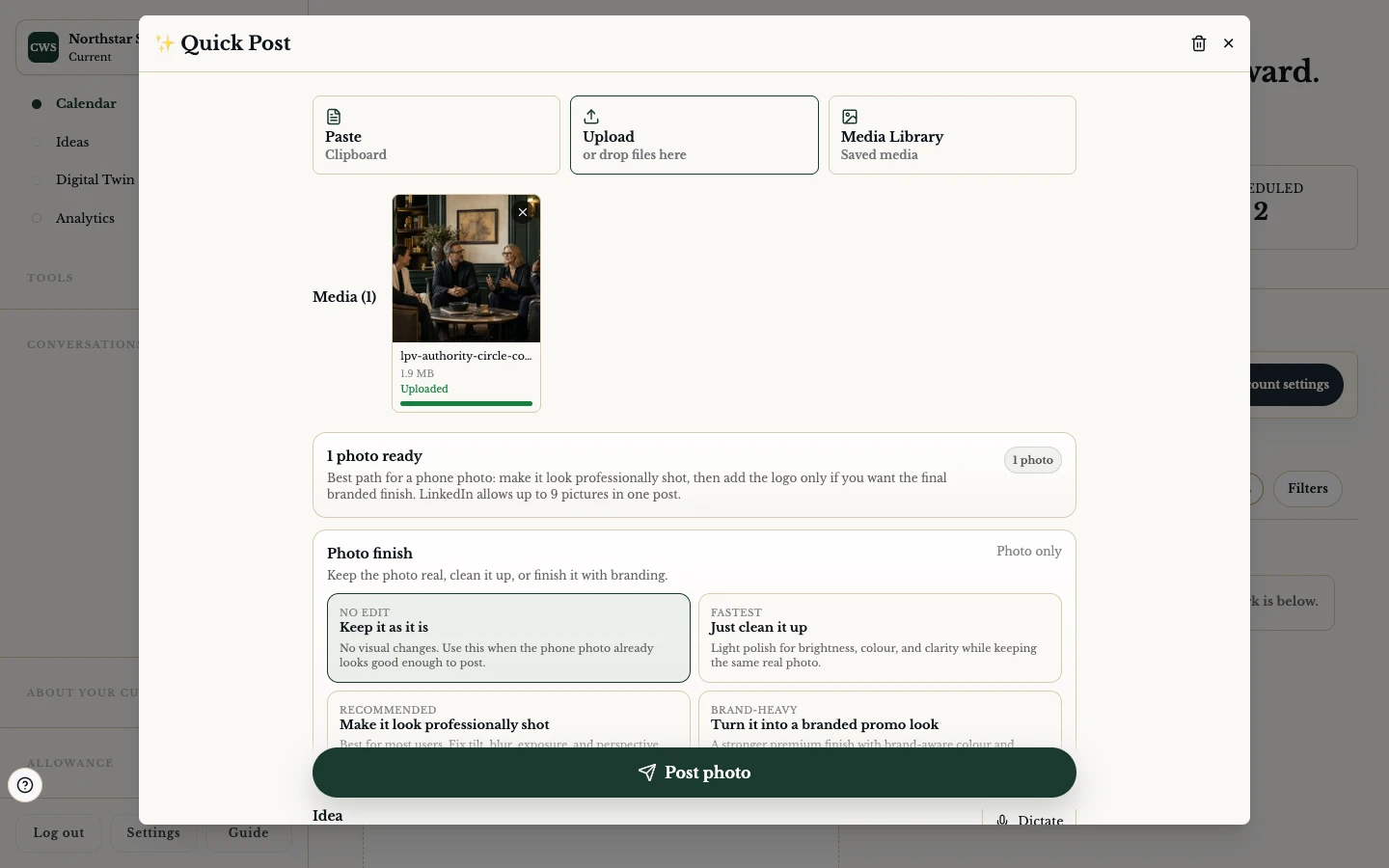
Start with your own photo, choose the lightest useful finish, and review the result before it becomes part of a post.

Read feature
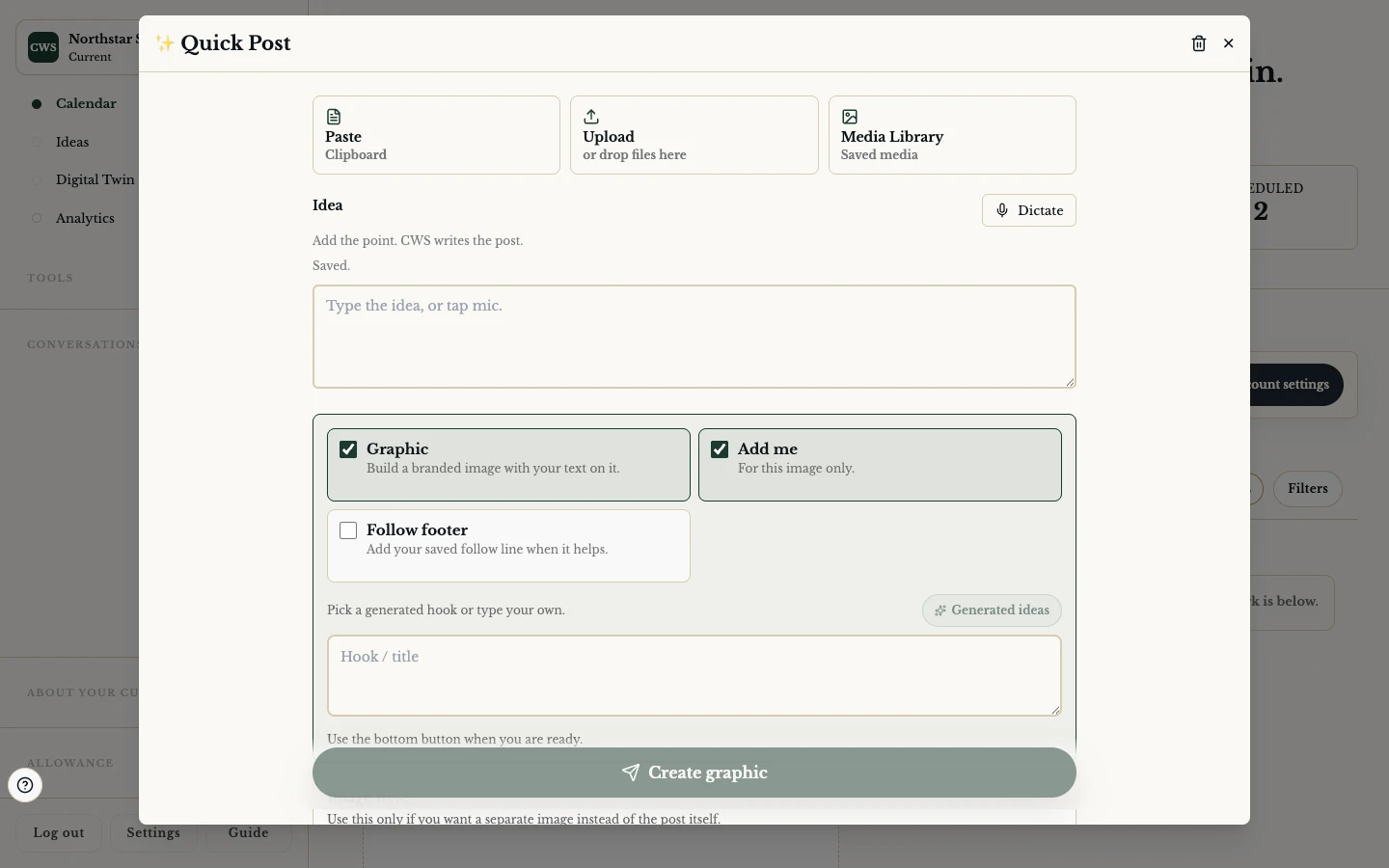
09

Turn a rough idea into a ready post

Start with words or media, review the draft and return the useful result to your content workflow.

Read feature
10

Schedule the work, check the result

Choose a connected destination and time, then read the returned provider state before treating the post as delivered.

Read feature
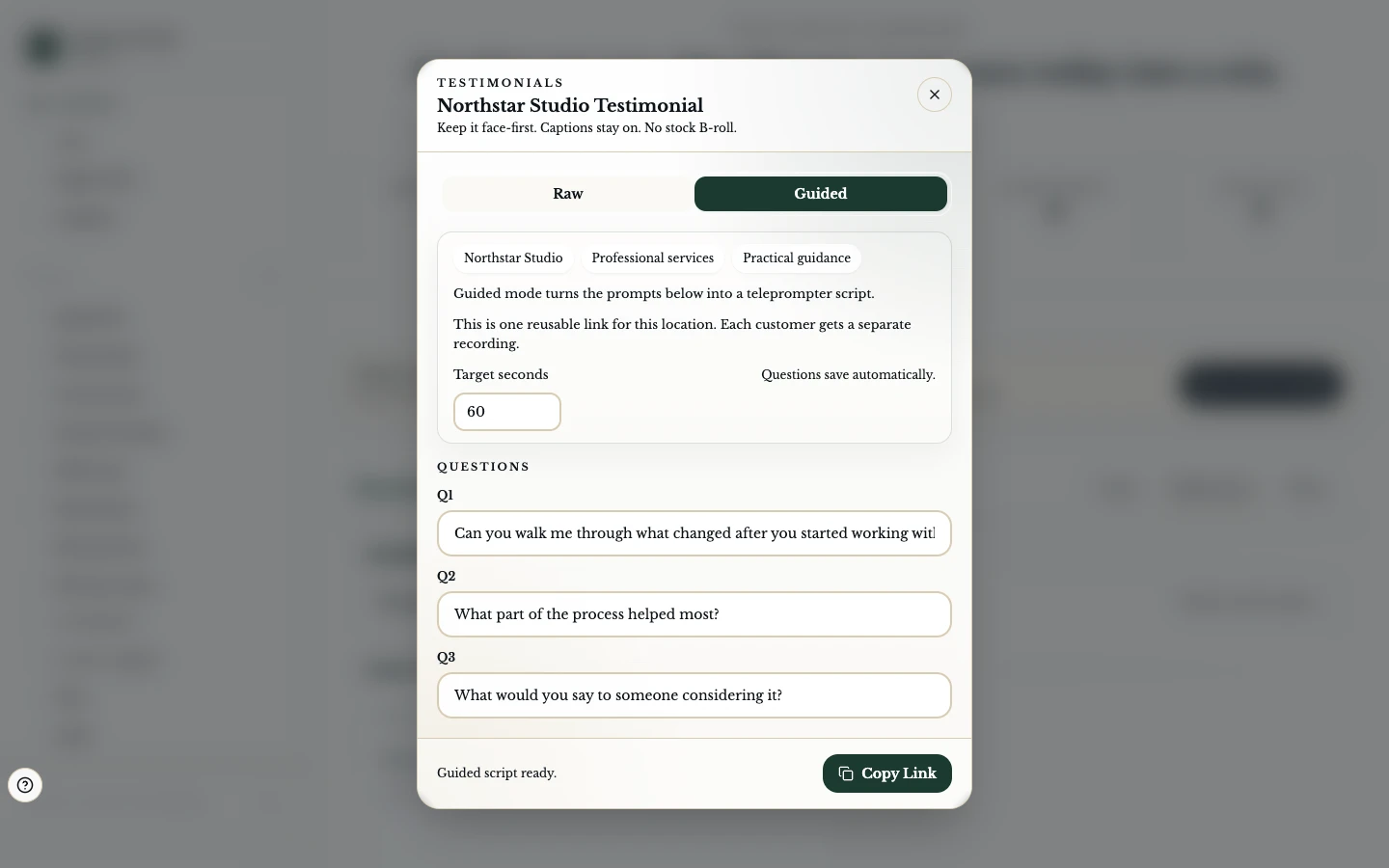
11

Make it easier to ask for a testimonial

Prepare clear questions, create a focused recording link, and keep the invitation separate from your private client calendar.

Read feature
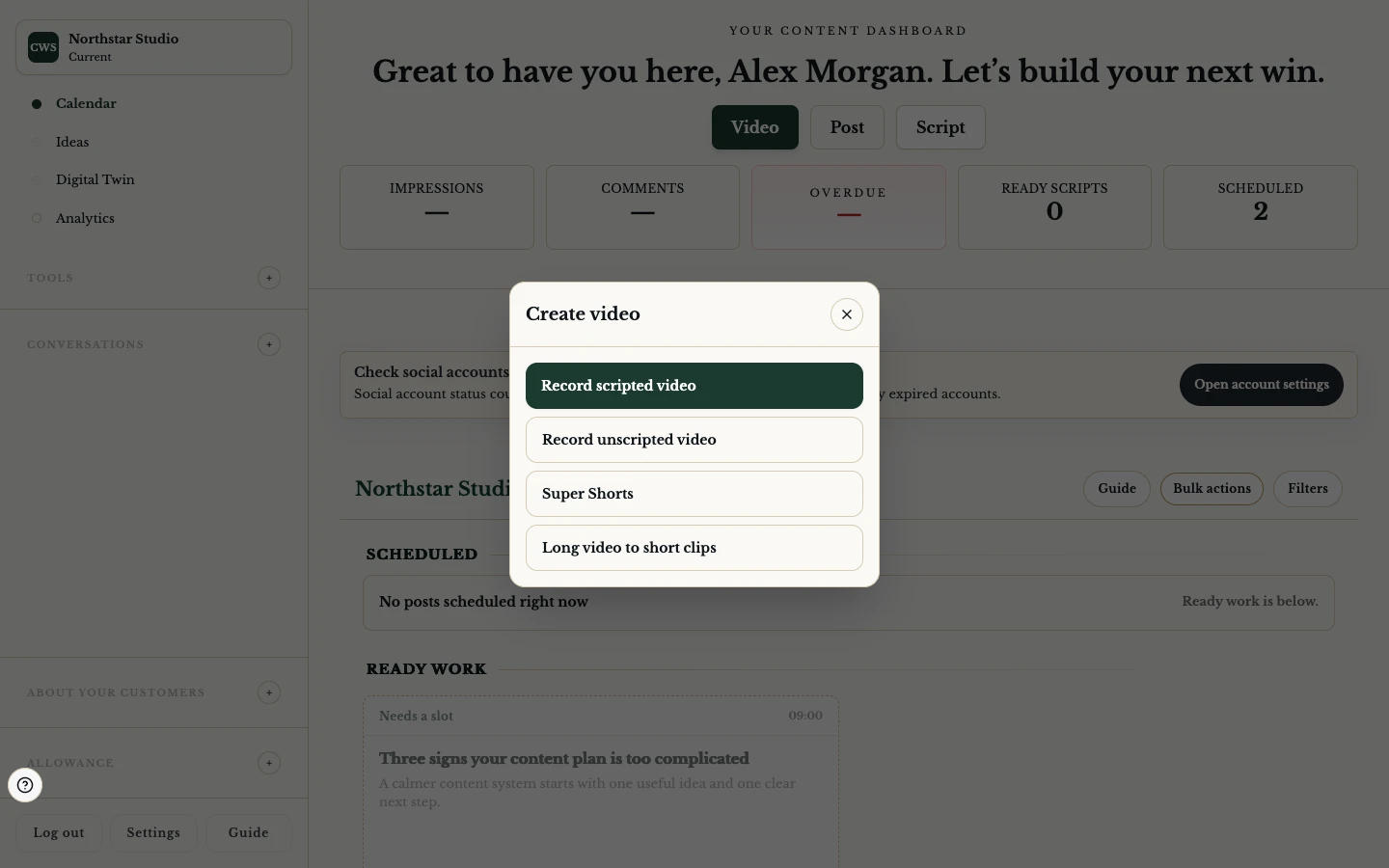
12

Record with a clear next line

Use a script or natural recording path, keep your place and recover valid work after an interruption.

Read feature
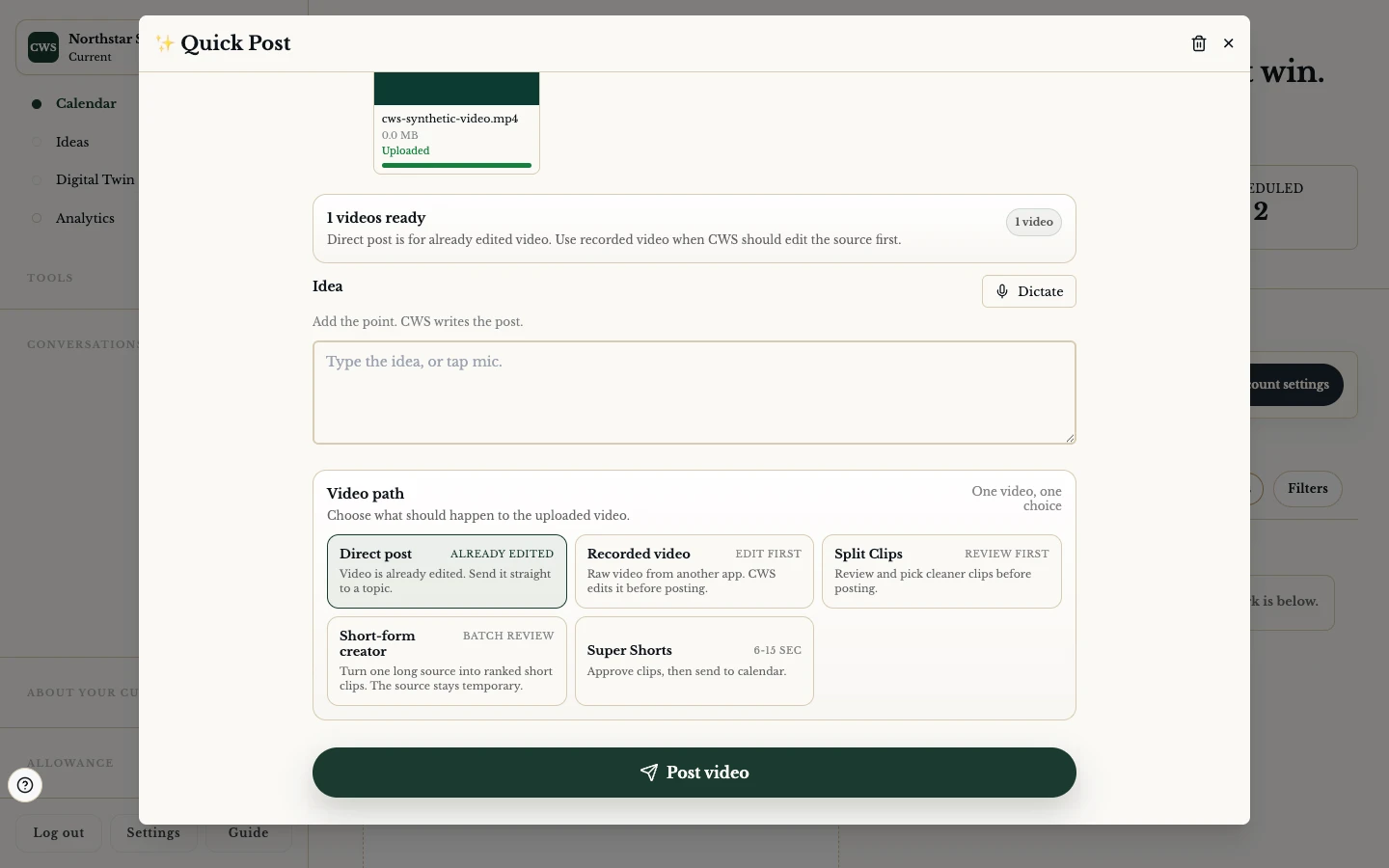
13

Reuse one video without losing the story

Start with a supported video source, review the suggested moments, and make the final cut before it enters your calendar.

Read feature