remote testimonial video collection
Make it easier to ask for a testimonial
Prepare clear questions, create a focused recording link, and keep the invitation separate from your private client calendar.
- Plan
- Create
- Review
- Move forward
Inside the app
See it in ClientWorkSystem.
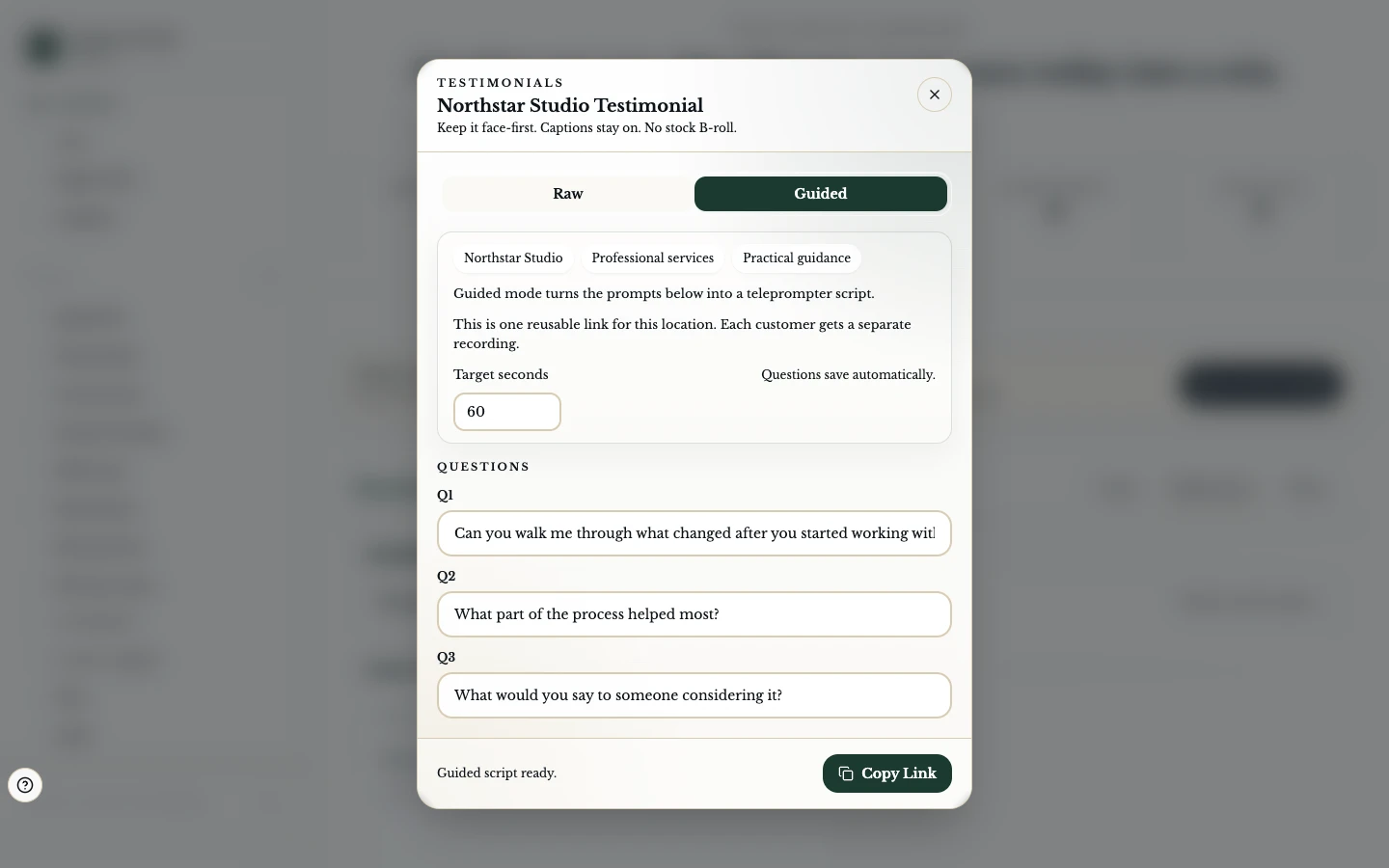
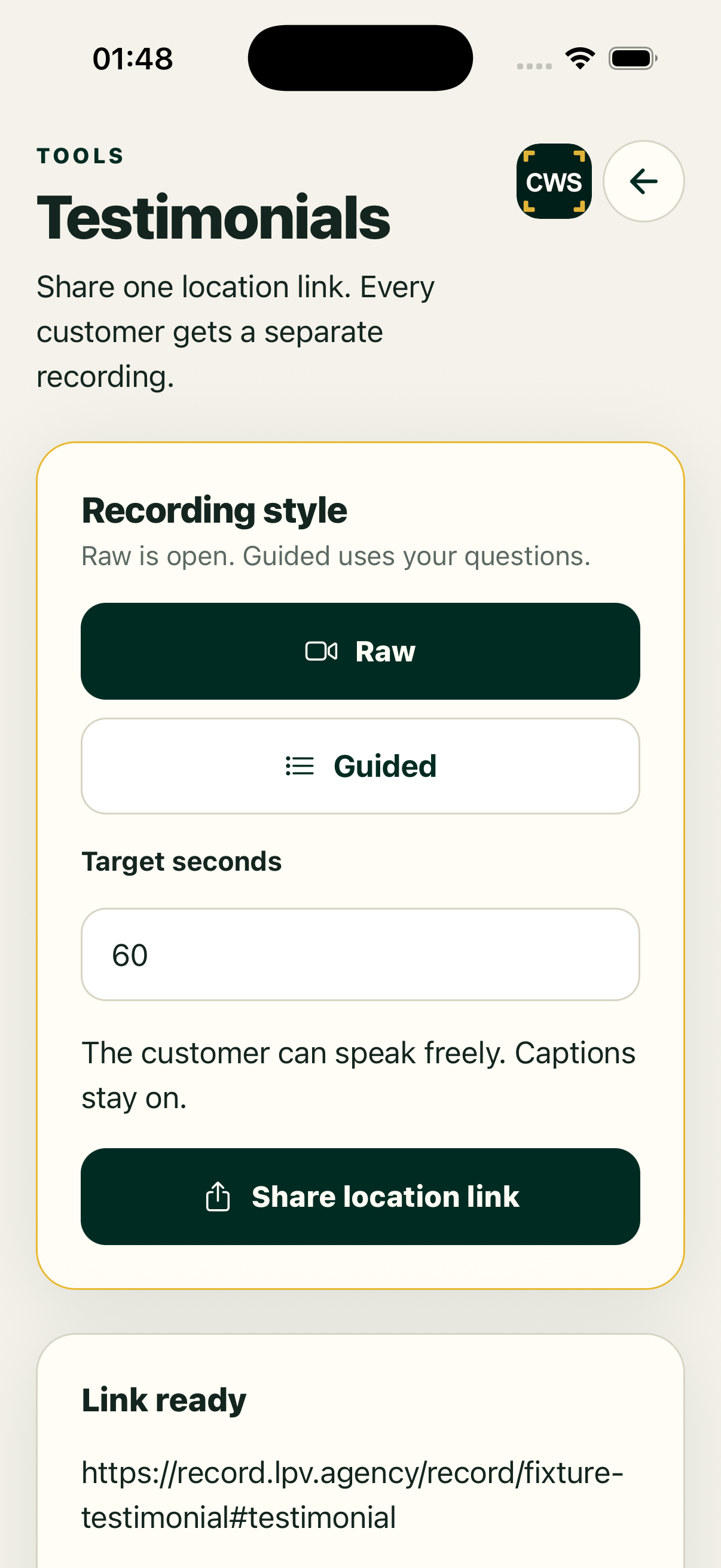
Testimonials work best when the request is simple. ClientWorkSystem lets you keep a question set, open the Testimonials modal, and generate a dedicated recording link. You can copy the link into an email or another approved channel. The person recording does not need your private calendar view to follow the prompt.
This is a collection workflow, not a promise of a positive review, an edited film, or a published case study. Ask for consent, avoid leading claims, and check the returned recording before sharing it. A generated link is an invitation; it is not proof that someone has recorded or that the file is ready.
How it works
- Open Testimonials from the client calendar for the location you are working with.
- Review or edit the saved question set so it fits the customer and service.
- Generate the focused recording link and copy it through an approved channel.
- Let the customer record from the link, following the visible prompt and duration guidance.
- Review the returned recording, confirm permission and wording, then choose the next approved editing or sharing step.
Keep the request human
Ask one useful question at a time. Questions can cover the starting problem, the experience, and what changed, without scripting a customer's words.
Set a clear boundary. Tell the person where the recording may be used and how to ask for changes or withdrawal.
Use the right context. Service focus and question labels can help the request feel relevant without exposing internal notes.
Review before reuse. Check names, claims, audio, image, consent, and whether the recording matches the permission given.
Keep delivery truthful. A saved recording or edited-link state is not the same as a public testimonial or published post.
Supported workflow and limits
The web client supports saved testimonial questions, recovery of those questions and a focused recording link. The recording experience and returned media depend on the active link and account. Native apps may open a secure web handoff. A created link, completed recording and approved marketing testimonial are separate stages.
FAQs
Does the customer need a ClientWorkSystem account?
The generated recording link is designed to keep the request separate from the private calendar. Confirm the current link flow before promising sign-in details.
Can I change the questions?
Yes. Review the saved question set before generating a link.
Is a recording automatically published?
No. Review, consent, editing, and the chosen delivery channel remain separate steps.
Can I ask for a specific result?
Ask open, honest questions. Do not pressure someone to make an unsupported claim.
Are recordings stored forever?
Retention depends on the current account and consent controls. Check those controls before sharing a recording link.