branded social media graphic generator
Make a social graphic that starts with your message
Turn a topic or post idea into a visual direction, then review the generated candidate before you use it.
- Plan
- Create
- Review
- Move forward
Inside the app
See it in ClientWorkSystem.
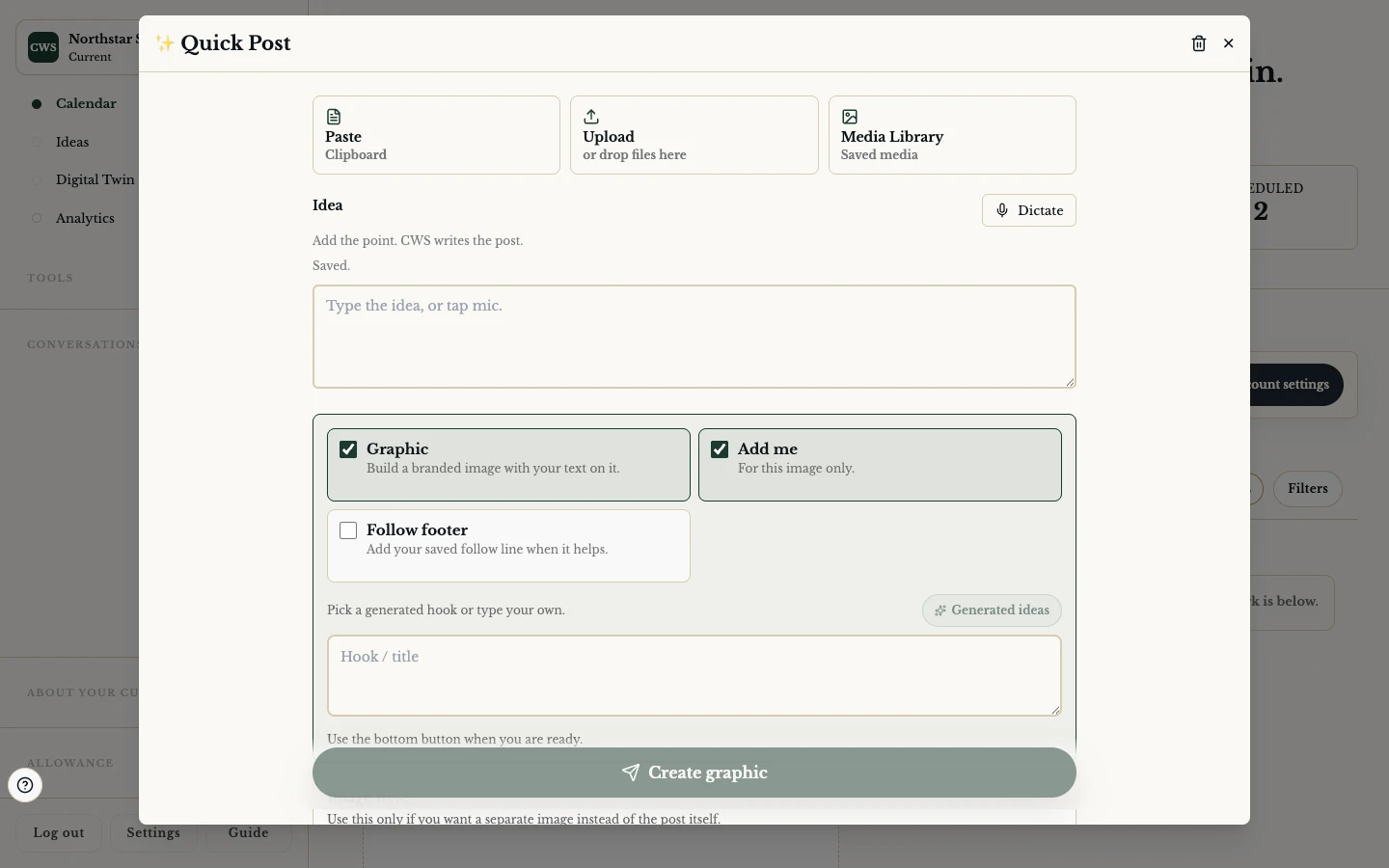
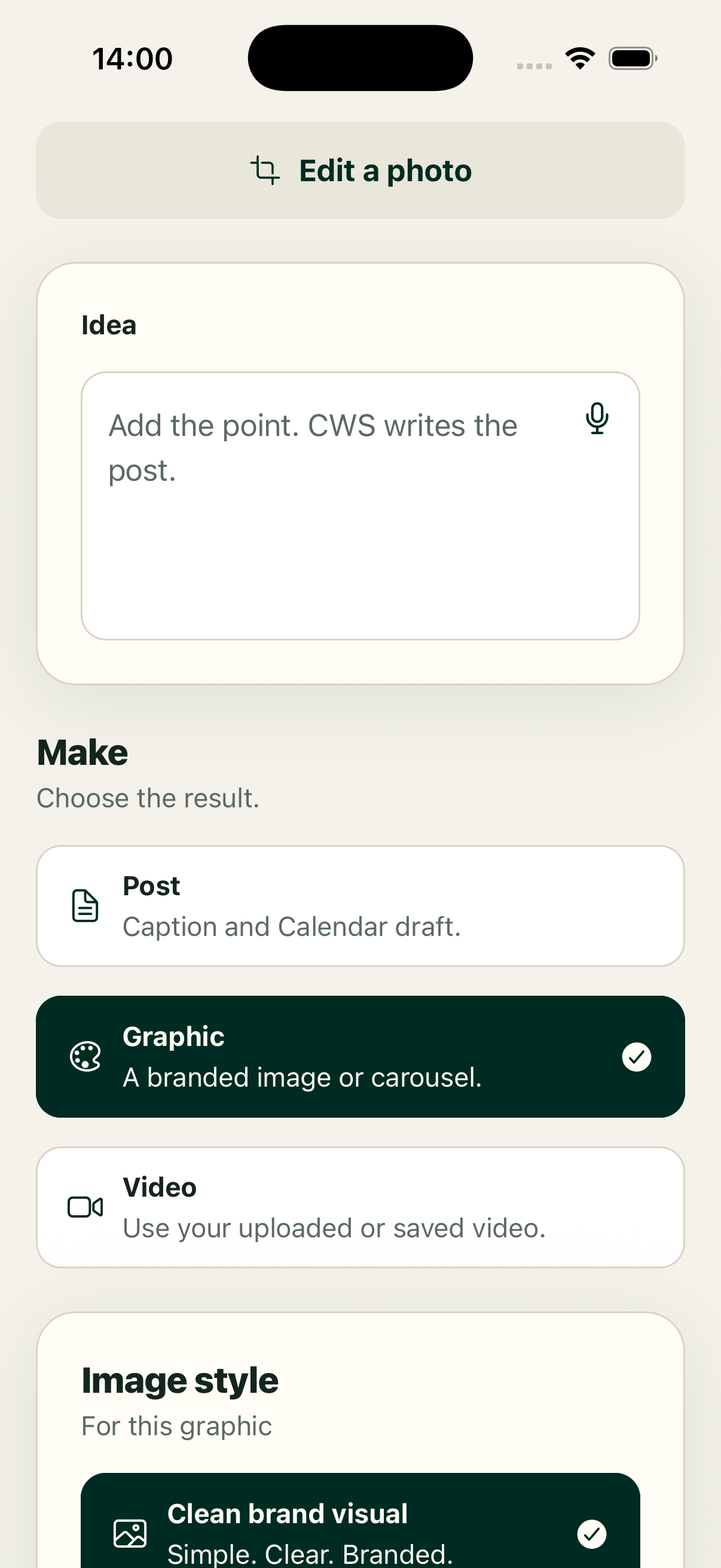
You do not need to begin with a blank design file. Start with a topic, a short brief, or a calendar item. QuickPost offers seven named directions: Clean brand visual, Commercial, Remake in our brand, Infographic / story, Before vs after, Add me, and Carousel. You remain the reviewer: check the words, people, colours, and layout before saving a draft.
The image itself is generated by a configured image provider. Results can vary, and a provider may decline, return an incomplete candidate, or need another attempt. ClientWorkSystem does not promise that a model will place exact text perfectly. Use the generated image as a candidate, and correct the post copy in the normal editor.
How it works
- Open QuickPost from the calendar or choose a topic's Graphic action.
- Add a clear subject, offer, or point of view. You can also include an uploaded image or saved media as context.
- Choose one of the seven visible directions that matches the job.
- Review the returned candidate and any warning. Retry or adjust the brief when the result is not usable.
- Keep the approved visual with its post draft, ready for your usual review and scheduling flow.
Seven useful starting directions
Clean brand visual. Keep the direction simple when the caption carries the detail.
Commercial. Build a product or service-led visual from a supplied brief. It is a draft for review, not a finished advert or compliance approval.
Remake in our brand. Supply an existing visual as a reference and check that the result is original and still uses your approved identity.
Infographic / story. Give a small set of facts or a teaching point a visual structure. Check every figure and label yourself.
Before vs after. Use only real, approved source material. Do not imply a result that your source does not show.
Add me. An uploaded photo can guide the image when that source is available. It does not guarantee an exact likeness or pose.
Carousel. Ask for a seven-slide sequence when the idea needs several panels. Confirm the panel order and that each image belongs to the same message.
Supported workflow and limits
The graphic launch and review flow is available through the web client and the calendar's QuickPost handoff. Native app controls can vary by device and app version. Image generation, likeness and legible in-image lettering depend on the available image service. A generated graphic stays in review until you choose the next step.
FAQs
Can I start from a calendar topic?
Yes. A topic can open QuickPost with its text and a selected graphic direction.
Will the image contain perfect text?
No promise is made. Treat model-rendered lettering as a candidate and keep exact wording in the post copy.
Can I use my own photo?
You can add an uploaded or saved photo where the current workspace offers that source. Review consent, identity, and crop before use.
Does this publish automatically?
No. The generated candidate remains in the normal review and delivery flow.
Which platforms are supported?
The web workflow is the reference surface. Check your signed-in app for native availability.