social media asset library
Keep the files that make the next post easier
Upload, find and reuse approved media while keeping attachments, batch work and deletion states clear.
- Plan
- Create
- Review
- Move forward
Inside the app
See it in ClientWorkSystem.
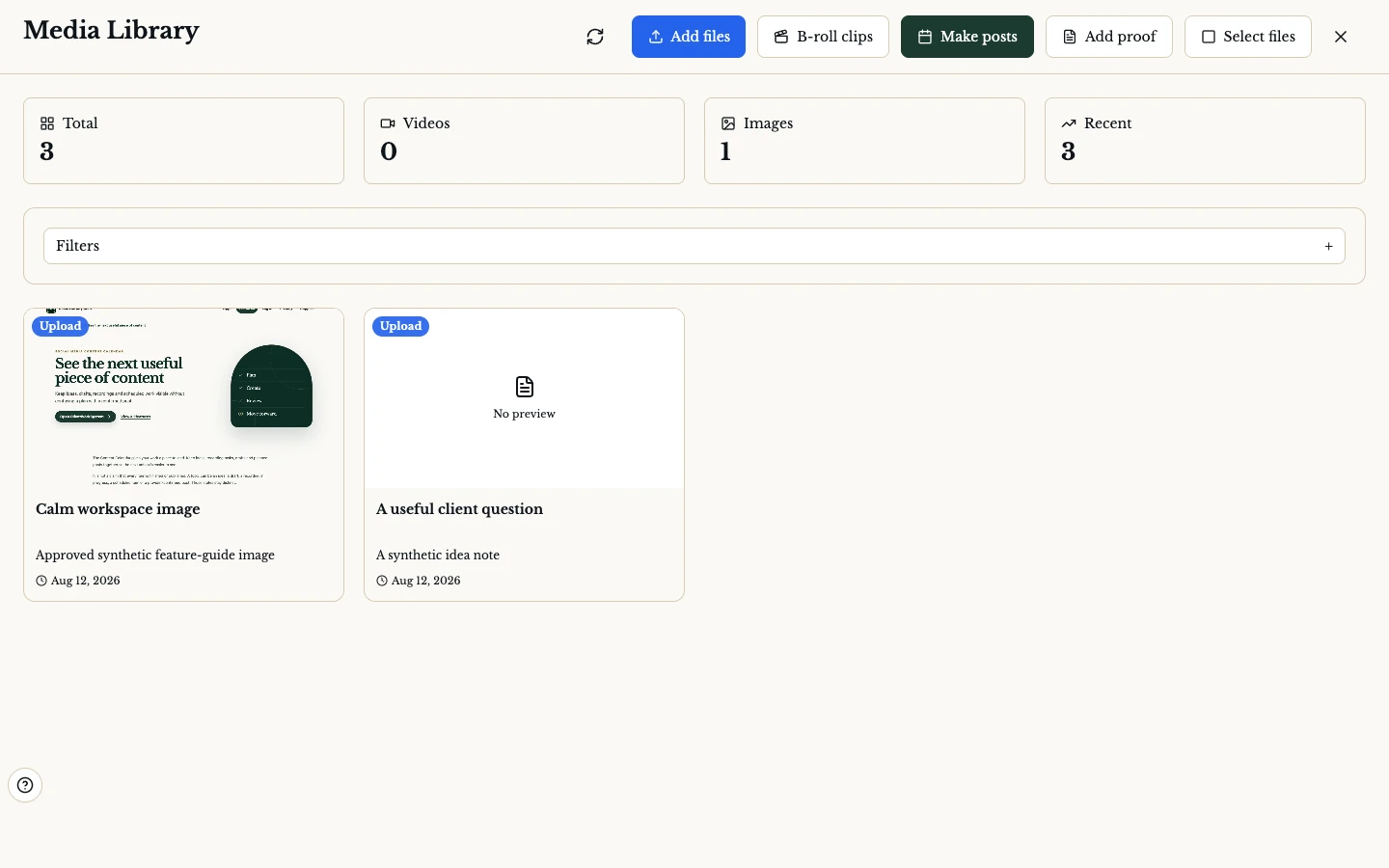
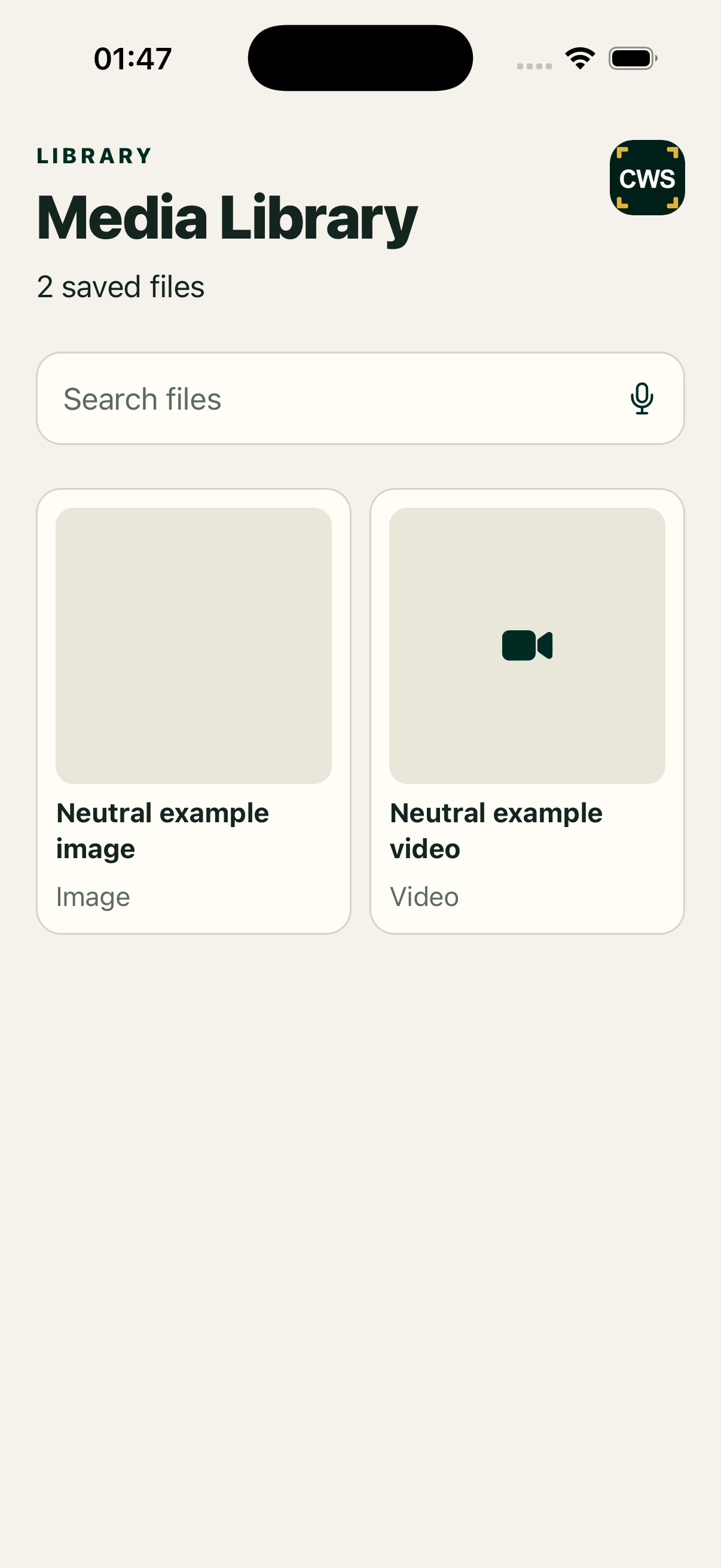
The Media Library is the place for reusable photos, videos and recording attachments in your ClientWorkSystem account. Upload a source once, review it, then choose it again when a post, edit or recording workflow needs media.
Library presence is not the same as approval or publication. Check the item, its status and the action you are taking.
How it works
- Open the library. Browse the media available to your account, or start an upload where the control is enabled.
- Add or select a file. Choose a supported photo, video or attachment and wait for the visible upload state.
- Review the item. Check the preview, file label, type and any proof or processing state shown.
- Use it in context. Select the item for QuickPost, a calendar item, recording attachment or another supported workflow.
- Keep the source clear. Remove or replace the wrong item before it enters a post or editing handoff.
A useful source, not a dumping ground
Upload once, reuse carefully
The library can reduce repeated selection of the same working file. Keep filenames and descriptions meaningful so the next person can identify the right source without opening every item.
Preview before you attach
A preview helps catch the wrong crop, outdated version or incomplete upload. If an item is still processing, wait for the state that the current workflow requires.
Attachments keep their context
Recording and editing flows can attach library images or clips to a saved project. The attachment path should preserve the relationship to the recording rather than create an unrelated duplicate.
Batch work stays reviewable
Where batch-post tools are enabled, select the exact items and review the proposed use. A batch request remains a request until its destination and provider state say otherwise.
Platform and availability
The Media Library is available through the web client and supported Mac, iPhone, iPad and Android apps. File selection can differ because each device uses its own picker or secure handoff. Windows is coming soon. File types, upload limits, editing attachments and batch actions can vary by account and app version.
Questions
Does the library replace a backup?
No. Keep your original files and any required business backup. The library is a product workspace, not a promise of independent archival storage.
Can I use a library video in QuickPost?
The supported media picker can return library items for QuickPost where enabled. The available type and action are shown in your account.
Can I attach media after recording?
Supported recording and editing flows can expose an attachment step. Check the project state before leaving the page.
Can other clients see my files?
Media is account-scoped in the product workflow. Use the signed-in account and avoid uploading material that should not be shared with that account.
Are all uploads ready immediately?
No. Upload, processing, preview and proof states can take different paths. Use the visible state rather than assuming readiness.