AI social media post generator
Turn a rough idea into a ready post
Start with words or media, review the draft and return the useful result to your content workflow.
- Plan
- Create
- Review
- Move forward
Inside the app
See it in ClientWorkSystem.
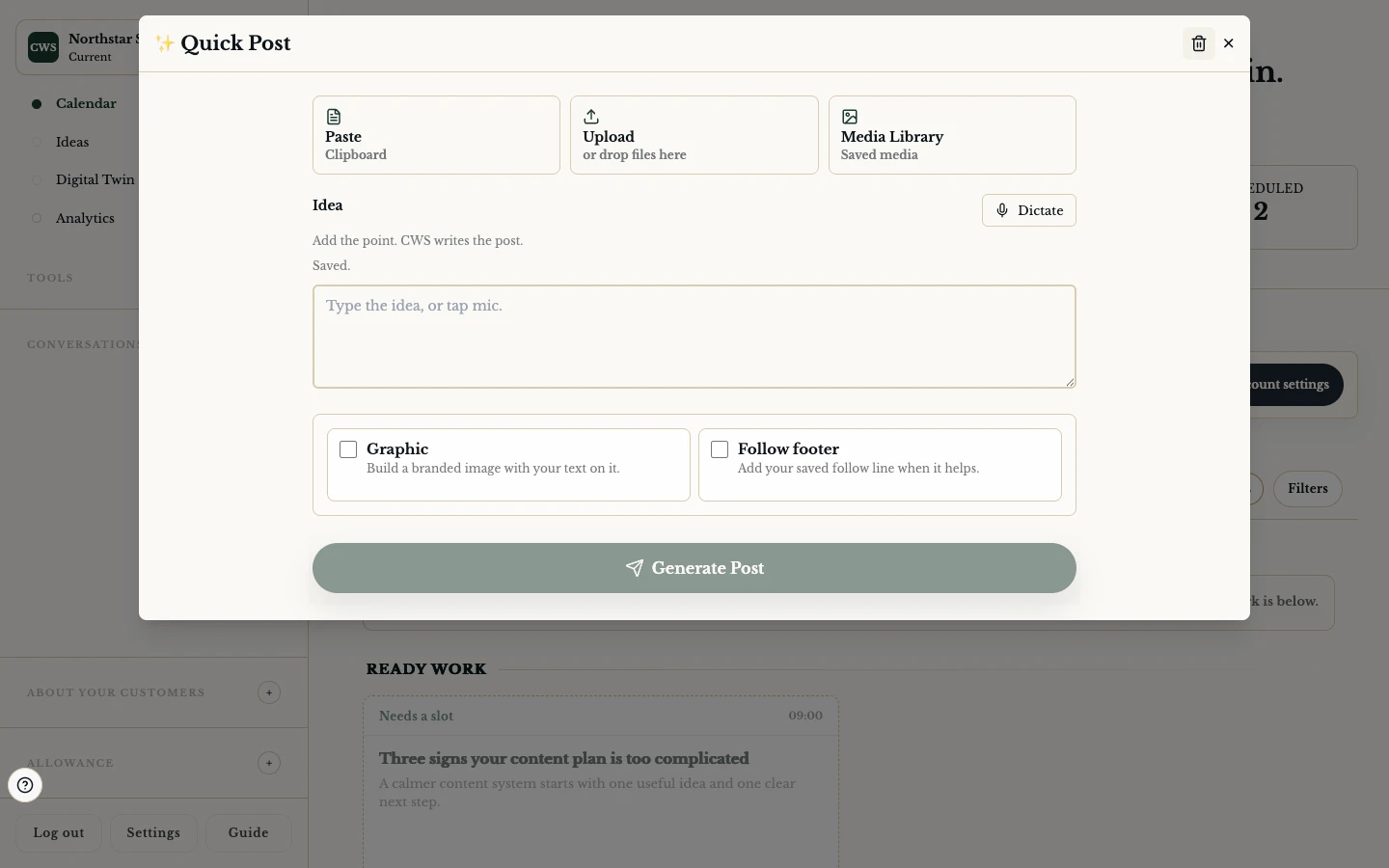

QuickPost gives a single place to begin a social post. Start with words, a dictated thought, a photo, a video, a PDF or an item already saved in your Media Library. Review the result before you save, schedule or leave it as a draft.
The tool helps with a first version. It does not replace your judgement, provider approval or a check that the content is right for the destination.
How it works
- Choose a starting point. Open QuickPost and select text, voice, upload or a saved library item where your account provides that option.
- Add the source. Give the composer the words or file it needs. Keep customer-sensitive material out of test captures.
- Review the draft. Check the caption, tone, media and any generated suggestions. Edit the words yourself.
- Choose the next action. Save the draft, return it to a calendar item or continue towards posting or scheduling.
- Check the returned state. A draft, queued request and provider-confirmed result are not interchangeable.
Start with what you already have
Text and dictation
Type a short idea or use the supported dictation control when speaking is easier. Short input can be enough to begin, but the resulting copy still needs a human read-through.
Photo, video and PDF
Use an uploaded source when the visual or document is part of the point. The composer can pass media through the existing preparation path; file limits and processing states remain real constraints.
Saved library items
Choose approved media from the ClientWorkSystem library rather than re-uploading the same file. The selected item should remain identifiable while you review the draft.
A safe draft boundary
QuickPost is useful before publishing because it keeps review in the flow. Remove an attachment if it is wrong, correct the copy and check the destination before sending anything onwards.
Platform and availability
QuickPost is available through the web client and supported Mac, iPhone, iPad and Android apps. File, microphone and camera controls can differ by device, and mobile may use a secure handoff for part of the flow. Windows is coming soon. Upload types, generation controls and connected destinations can vary by account and app version.
Questions
Does QuickPost automatically publish?
No. It creates or prepares a draft. Posting or scheduling is a separate action with its own connection and provider response.
Can I edit generated text?
Yes, where the composer exposes the editable draft. Treat generated text as a starting point and check names, facts, claims and tone.
Can I remove an attachment?
The current workflow includes attachment removal and draft-save safeguards. If the interface shows a pending preparation state, wait for the visible result before leaving.
Can I use a Media Library item?
The library selection path is supported where enabled for your account. The available media types and actions are shown in the signed-in surface.
Is AI available for every post?
No. Generation can depend on your account, input and service availability. A useful manual draft remains a valid path.