social media content calendar
See the next useful piece of content
Keep ideas, drafts, recordings and scheduled work visible without confusing a plan with a confirmed post.
- Plan
- Create
- Review
- Move forward
Inside the app
See it in ClientWorkSystem.
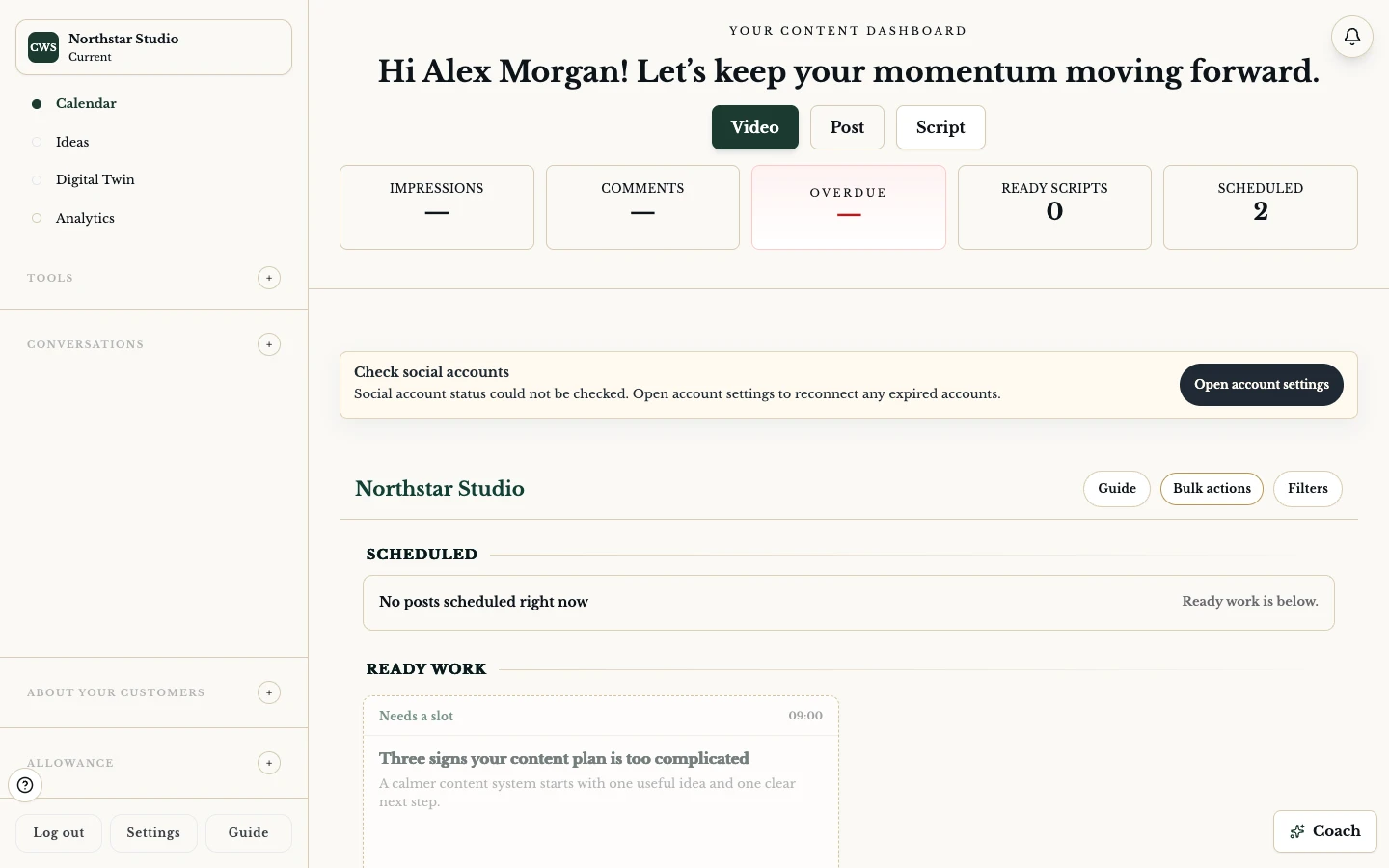
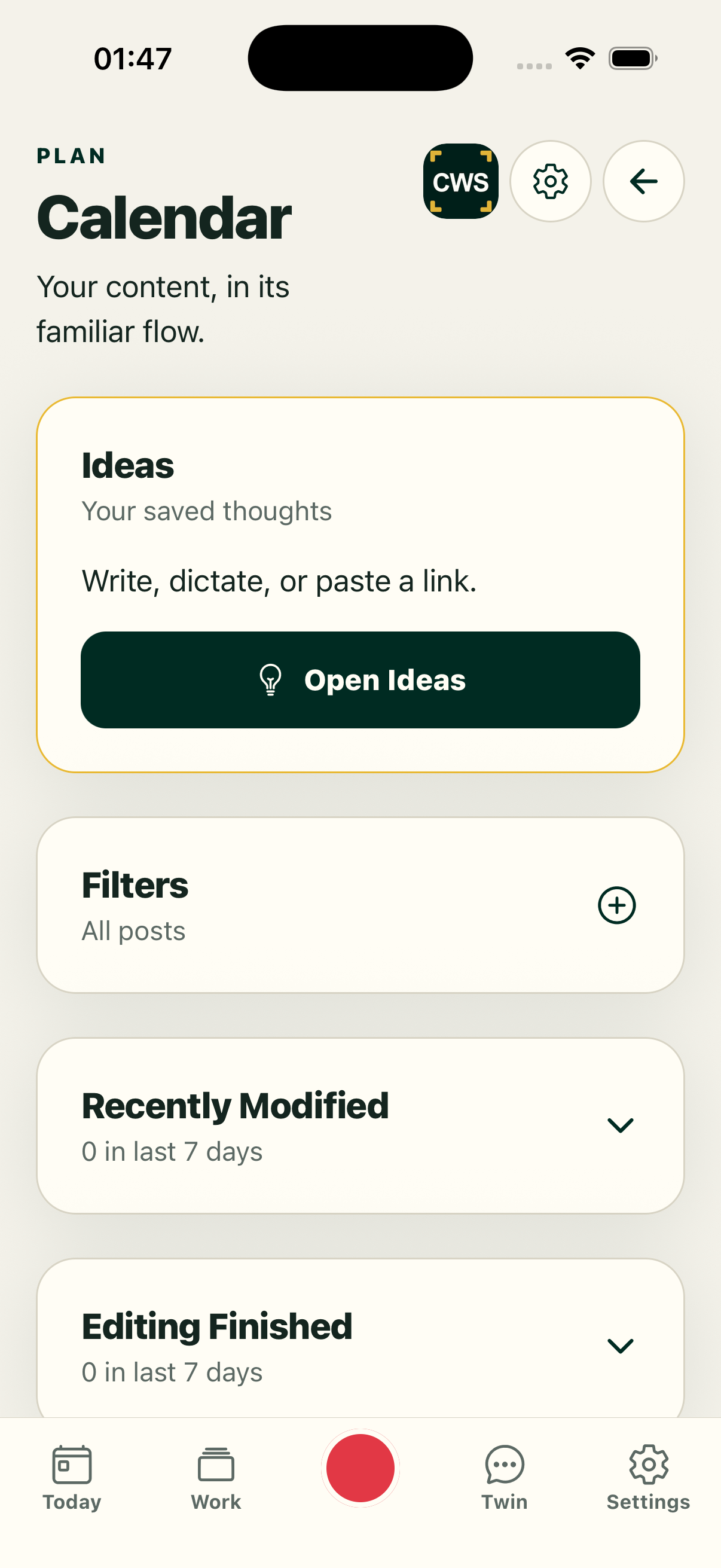
The Content Calendar gives your work a place to land. Keep ideas, recording tasks, drafts and planned posts together so the next action is easier to see.
It is not a claim that every item is finished or published. A topic can be an idea, a draft, a recording in progress, a scheduled item or a provider-confirmed post. Those states stay distinct.
How it works
- Open Today or the calendar. Start with the current view, then move across the dates or planning areas you need.
- Choose an item. Open an idea, draft or scheduled item to see its available actions and source context.
- Make the next version. Write a caption, add media, create a script or open recording from the item where supported.
- Review before scheduling. Check the text, media, destination and proposed time.
- Return to the calendar. The item remains visible with the state returned by the workflow, including pending or retry states.
A working view, not a wall of promises
Today keeps attention narrow
Today and calendar views can expose the next action without making you search through every project. Use the state labels as a guide: they describe where the work is, not how successful it will be.
Ideas can become real work
Calendar ideas can carry a title, description, hook, script text and related media into creation flows. Choose the action that matches the item instead of starting again in a blank composer.
Recording work can come back safely
Video work may include upload, processing, preview, retry or send-for-editing states. If an interruption occurs, use the recovery path shown by the product. Do not assume a browser tab closing means a finished video exists.
Scheduling keeps its own truth
The calendar can show a selected slot or a queued action. Confirmation from the connected network is a separate result. If a connection is missing or a request fails, the status remains visible and the useful draft is kept where possible.
Platform and availability
The calendar is available on the web and through the Mac, iPhone, iPad and Android apps. Views and labels can differ because desktop and mobile use the controls that fit each device. Windows is coming soon. Sign in on a device to see the controls available there.
Questions
Is the calendar a scheduler by itself?
It is the planning surface. Scheduling also depends on a valid destination, an allowed account and a returned request state.
Can I edit an idea after opening it?
Where the item exposes editing, you can update its available text or media before the next action. The exact controls depend on the item state.
Does moving a card publish it?
No. Planning and publishing are different actions. A post only becomes provider-confirmed when the destination returns that result.
Can I recover a recording from the calendar?
Supported recording links retain context for recovery. Availability depends on the recording flow and its saved checkpoint.